Connect Extensiv 3PL Warehouse Manager to Google Sheets
Get analysis-ready data from Extensiv 3PL Warehouse Manager to Google Sheets on a schedule to streamline your reporting & analytics.



Trusted by 200K+ users worldwide










How to connect Extensiv 3PL Warehouse Manager and Google Sheets
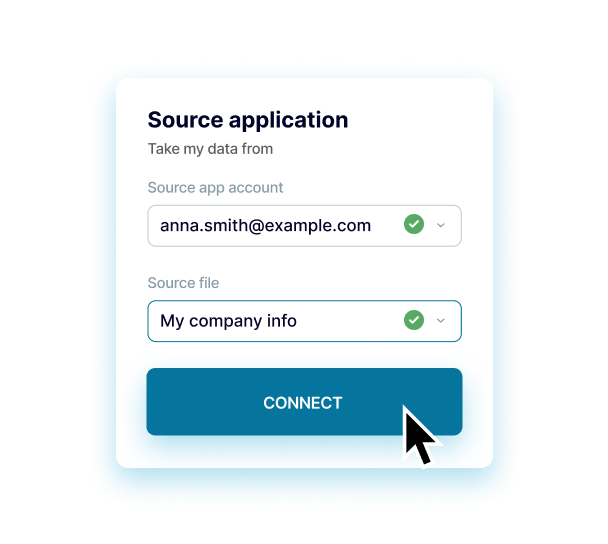
Step 1.
Connect Extensiv 3PL Warehouse Manager and configure the parameters
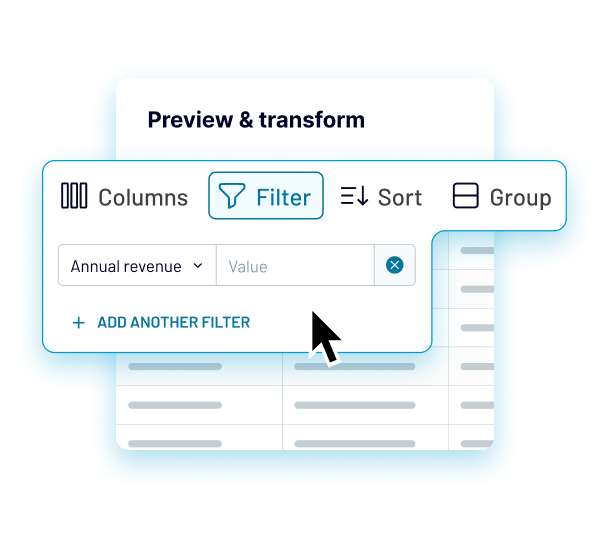
Step 2.
Preview, transform & filter data
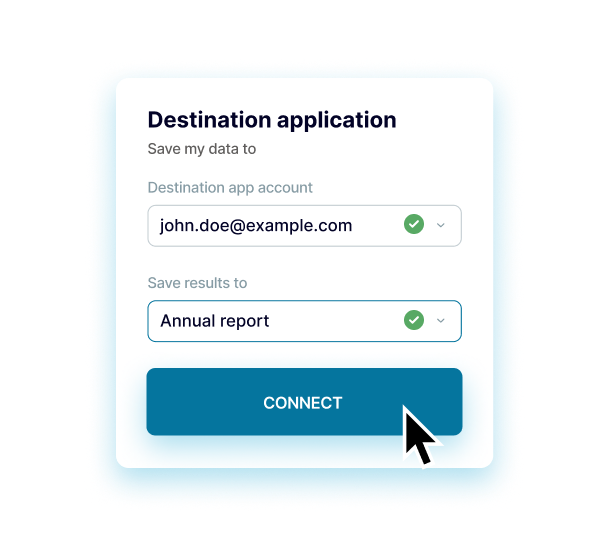
Step 3.
Setup Google Sheets and configure the parameters
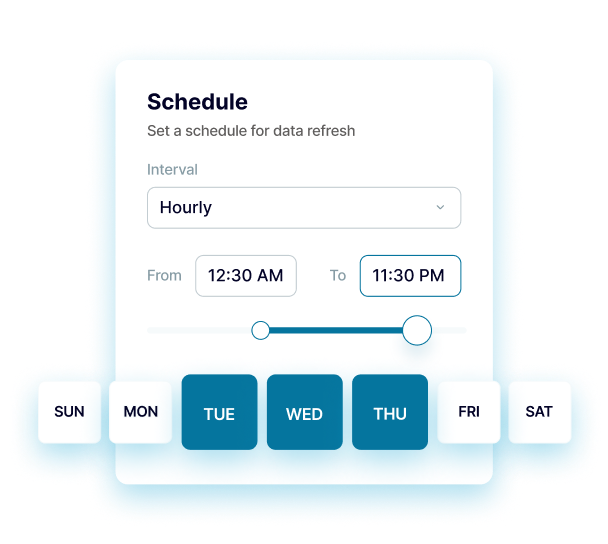
Step 4.
Set a schedule for data refreshes
Coupler.io made it easy to create dashboards and reports from different data sources. The sync is reliable and the user experience is amazing.

Take your data analytics to the next level
 Sign Up with Google
 Sign Up with MICROSOFT
 SIGN UP WITH EMAIL
By signing up to Coupler.io, you agree to our Privacy Policy and Terms of Use.
Connect Extensiv 3PL Warehouse Manager to Google Sheets using Coupler.io
Enjoy a seamless and efficient solution to integrate Extensiv 3PL Warehouse Manager and Google Sheets in just a few simple steps with zero technical skills required. Automate your reporting and analytical dataflows using Coupler.io: collect, merge, preview, transform, and filter data from Extensiv 3PL Warehouse Manager before loading it to Google Sheets. Set your schedule for the automatic data refresh, ranging from a monthly interval to as frequent as every 15 minutes.
Get a one-stop solution to make data-driven decisions and drive the business forward. Use the out-of-the-box expert service to amplify your data analytics and workflow automation. Build bespoke data analytics dashboards to track your business metrics and see the holistic picture of your business.
Connect Extensiv 3PL Warehouse Manager to Google Sheets
Get a one-stop solution to make data-driven decisions and drive the business forward. Use the out-of-the-box expert service to amplify your data analytics and workflow automation. Build bespoke data analytics dashboards to track your business metrics and see the holistic picture of your business.

Build your Extensiv 3PL Warehouse Manager integrations with these destinations


Other integrations you can benefit from

















Get the most of Extensiv 3PL Warehouse Manager to Google Sheets integration

Gather data
Export data from numerous apps and sources into a single destination. Blend data from different apps to get a single source of truth.

Understand data
Preview, transform, sort, and filter data for better clarity in just a few clicks in the Coupler.io interface. Take your data analytics to the next level.

Automate data
Access data that is always up to date by enabling the automatic data refresh on a schedule as often as every 15 minutes and using triggered automation.

Act on data
Visualize your data by quickly connecting to data visualization and BI tools. Build insightful dashboards in a breeze and make better decisions.