Omnisend to Google Sheets

Export Omnisend to Google Sheets

Load email marketing data into accessible spreadsheets that update automatically with the Omnisend to Google Sheets integration by Coupler.io. Enable automated campaign data exports for enhanced team collaboration and real-time performance monitoring.

πŸ† Voted 4.9/5 on Capterra πŸ”’ SOC2 & GDPR compliant 🌍 Trusted by 1M+ users worldwide

What data you can export from Omnisend?

... and many more

All-in-one tool for Omnisend data exports and analytics

Export campaign metrics, subscriber engagement data, and transaction records from Omnisend, and combine it with sales data from e-commerce platforms, advertising spend from marketing channels, or customer data from CRM systems for unified email marketing intelligence.

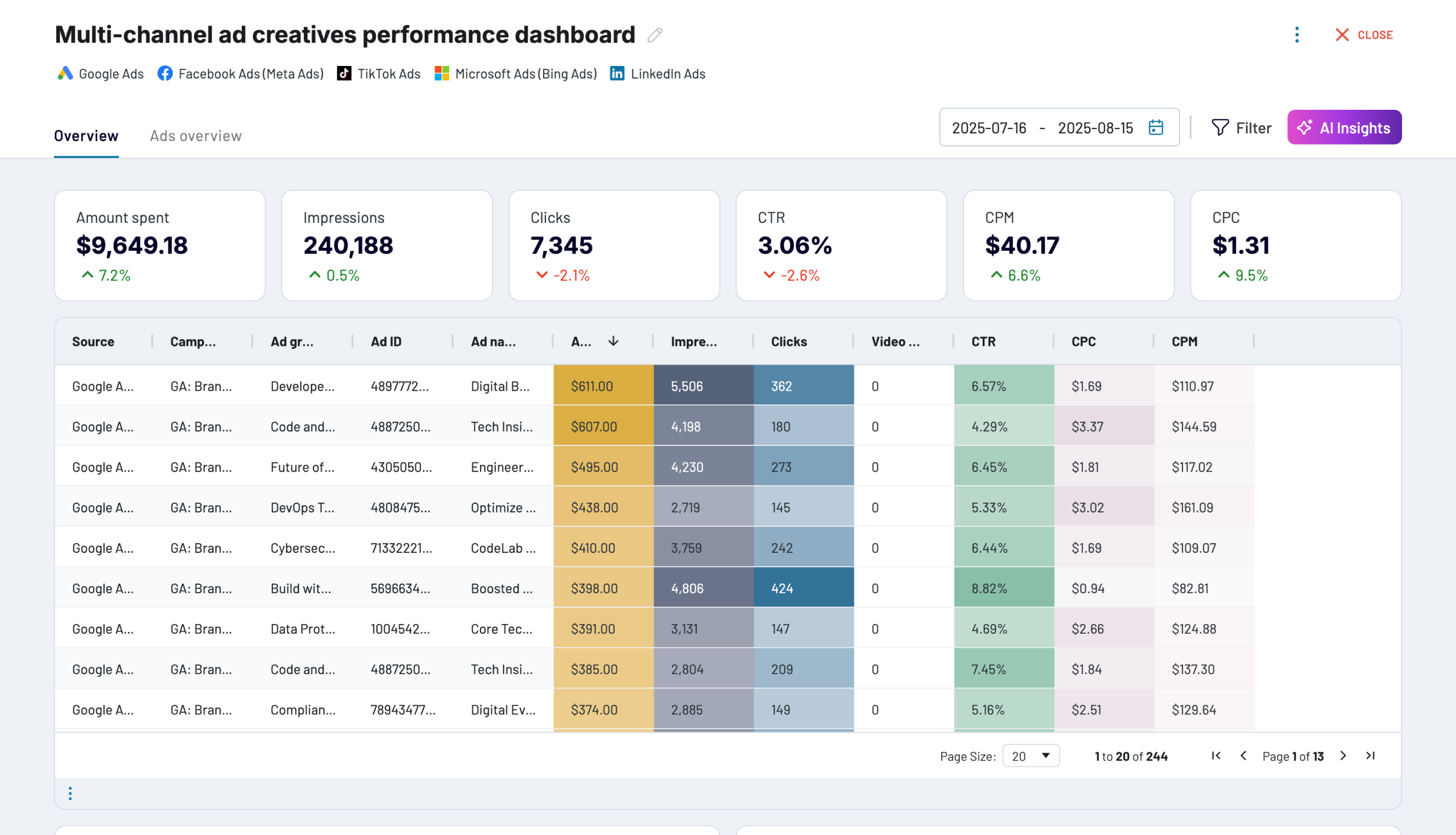
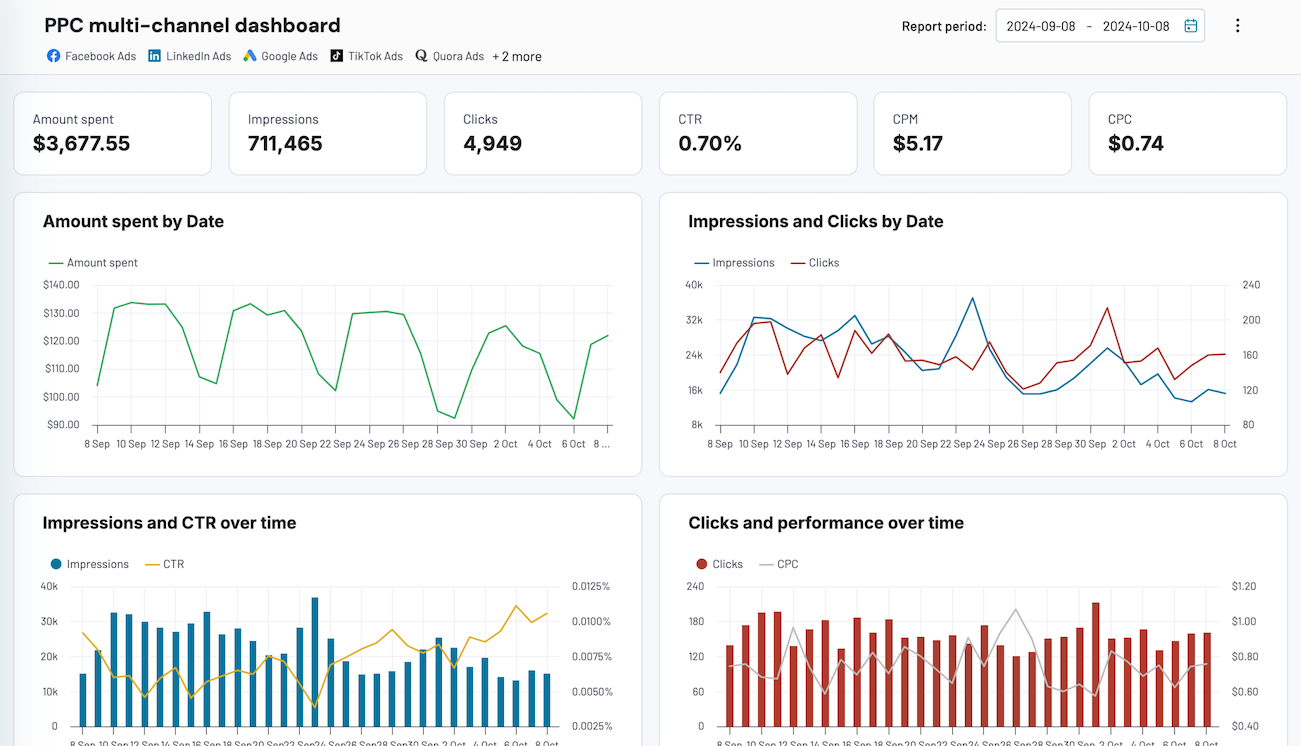
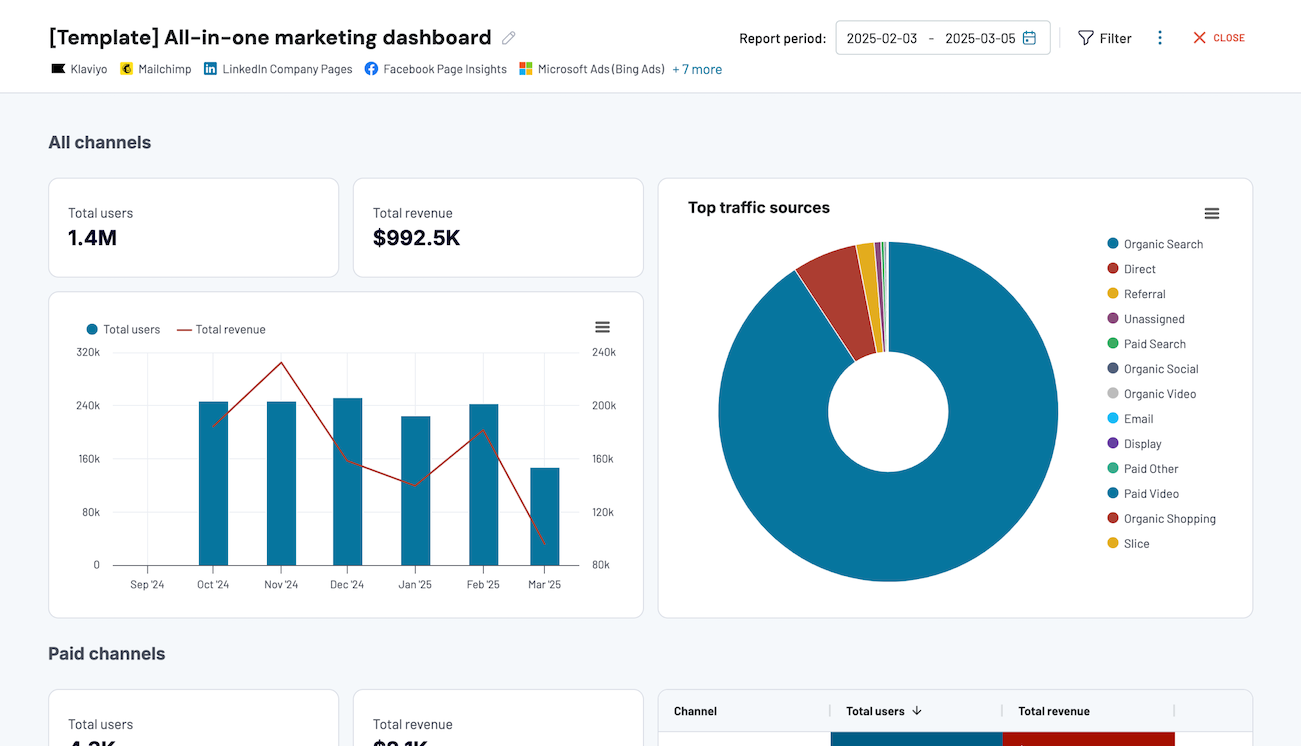
Collect data from Omnisend and enrich it with information from other sources image

Transform email marketing records into structured, analysis-ready formats with proper data types, clean formatting, and optimized schema. Eliminate manual data preparation and ensure immediate usability for campaign reporting and performance analysis.

Organize raw Omnisend data in the form of a ready-to-use data set image

Keep your email marketing data up-to-date with flexible scheduling options, including 15-minute, 30-minute, hourly, daily, and monthly refresh intervals. Ensure your reports always reflect the latest Omnisend campaign performance without manual intervention.

Automate data refresh on a custom schedule image

Access AI-powered insights through Coupler.io AI integrations. Enable natural language conversations with AI tools about your email marketing data for instant answers, trend analysis, and strategic recommendations.

Connect Omnisend data to AI to query and analyze data using natural language conversations image
Collect data from Omnisend and enrich it with information from other sources image
Organize raw Omnisend data in the form of a ready-to-use data set image
Automate data refresh on a custom schedule image
Connect Omnisend data to AI to query and analyze data using natural language conversations image

Why export Omnisend to Google Sheets - real life cases

Collaborative campaign performance reviews icon

Collaborative campaign performance reviews

Automatically export Omnisend campaign metrics to Google Sheets for real-time team collaboration on email marketing performance. Share interactive dashboards with marketing teams, executives, and stakeholders, allowing everyone to view open rates, click patterns, and revenue attribution simultaneously while discussing optimization strategies and campaign adjustments in shared documents.
Cross-functional email marketing reporting icon

Cross-functional email marketing reporting

Combine Omnisend email data with sales pipeline information, customer service metrics, and product inventory in Google Sheets to create holistic marketing reports. Enable cross-departmental visibility into how email campaigns influence customer journeys, support ticket volumes, or product demand for coordinated business strategy development.
Real-time subscriber list management icon

Real-time subscriber list management

Export Omnisend contact data to Google Sheets for collaborative subscriber list hygiene and segmentation planning. Allow multiple team members to review engagement patterns, identify inactive subscribers, and coordinate re-engagement campaigns or list cleaning initiatives with transparent, shared access to audience data.
Automated campaign budget tracking icon

Automated campaign budget tracking

Load Omnisend campaign performance alongside marketing spend data in Google Sheets to track email marketing ROI collaboratively. Create shared budget dashboards showing cost per acquisition, revenue per campaign, and performance against targets, enabling finance and marketing teams to monitor spending efficiency together.

How to export Omnisend to Google Sheets

Step 1. Connect to your Omnisend account and select the data to export
time icon 30 seconds
Step 2. Organize data using transformation options such as filters, column management, aggregation, etc.
time icon 30 seconds
Step 3. Connect your Google Sheets account and specify where to load your data
time icon 30 seconds
Step 4. Schedule data refresh to automate data flow from Omnisend to Google Sheets
time icon 10 seconds

Automate data exports with the no-code Omnisend Google Sheets integration

Quick start with dashboard templates

No such template is available yet.
No worries. Our team will create a template that fits your needs, just tell us more
about your case. It doesn't cost you a penny πŸ˜‰
Request a custom report

Talk to AI about your Omnisend data

In addition to Google Sheets, Coupler.io enables users to connect Omnisend to AI tools through the Coupler.io MCP server. As a result, users can have natural language conversations with AI about their email marketing data, asking questions and receiving insights without complex formulas or manual analysis.

Examples of questions you can ask about Omnisend data:
"Which subscriber segments have the highest engagement rates and purchase frequency?"
"Show me how campaign performance has changed month-over-month for the past quarter"
"What percentage of abandoned carts are recovered through our email campaigns?"
"Identify campaigns with unusually high unsubscribe rates and explain possible causes"
connect-ai-integrations image omnisend.svg

Customer success stories

At Coupler.io, our mission is simple: to help our customers succeed by unlocking the full potential of their data. Check out how using Coupler.io has helped businesses like yours scale and achieve better ROI.

Keep your data safe

Coupler.io safeguards your shared information and data transfers from breaches, leaks, and unauthorized disclosures.

Google Cloud Platform icon SOC2 icon Hipaa icon GDPR Compliance icon
Learn more about security

Ready to connect Omnisend to Google Sheets and automate your reporting?