Stripe to Power BI Integration
Connect Stripe to Power BI using Coupler.io for refined financial analysis. Schedule data exports, transformation, and management within a single user interface and no coding. Derive valuable insights about your transactions for efficient financial management.


Connect Stripe to Power BI with Coupler.io to simplify reporting

Get and prepare data effortlessly
Streamline financial data analysis by exporting it to the BI tool on a schedule with Coupler.io. Import data from Stripe to Power BI with no coding and powerful transformation options to make it analysis-ready.

Automate reporting tasks
Boost your reporting effectiveness with Coupler.io’s capabilities. Schedule data exports from Stripe to Power BI and join data from other financial tools. Automatically populate your reports with data and get up-to-date insights.

Stand out as a data-driven expert
See how the Stripe to Power BI integration with Coupler.io improves the quality of the overall financial reporting. Become a data-driven expert and deliver digestible results to your stakeholders. Reduce time on routine activities and focus on business-critical tasks.
How to integrate Stripe to Power BI (detailed guide)
Use Coupler.io to visualize and analyze your transactions with ease. Just connect Stripe to Power BI, organize your data, and schedule regular refreshes to create a solid base for accurate reporting.
First of all, make sure you have a Coupler.io account or create a new one (no credit card is required). Create an importer and enjoy a 3-step no-code setup to import data from Stripe to Power BI.
Step 1: Collect Stripe data
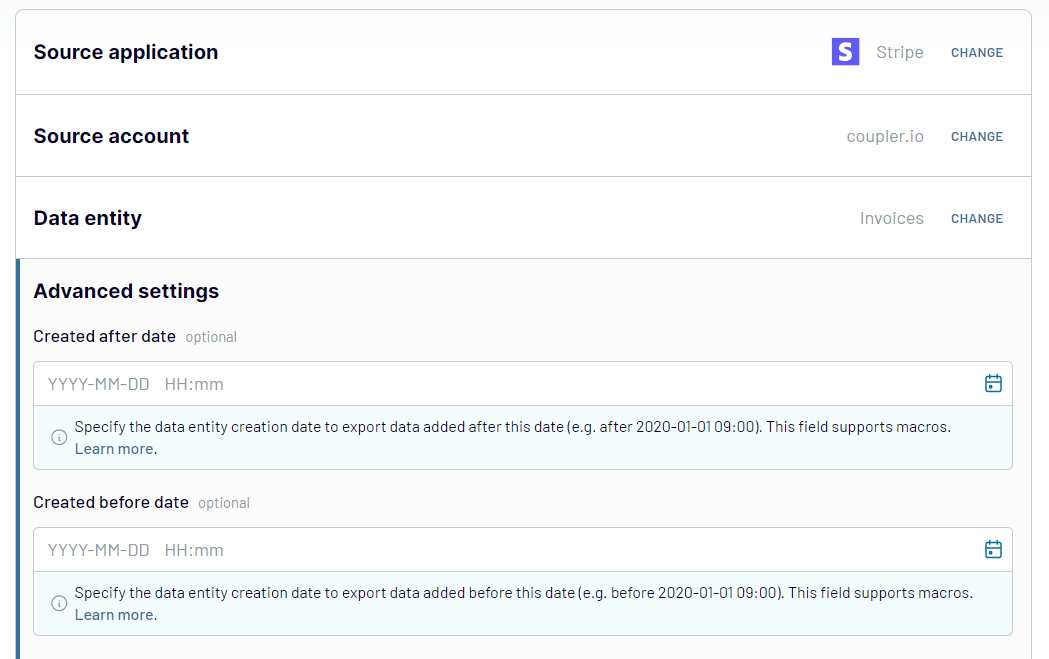
The first thing to do is authorize Coupler.io to access your Stipe data. Select Stripe as a source, click Connect, and follow the on-screen instructions. Afterward, pick up customer data, transactions, or payment details under the Data entity. Optionally, set the time period for your reporting and configure other parameters in the source settings.
Step 2: Organize & Transform
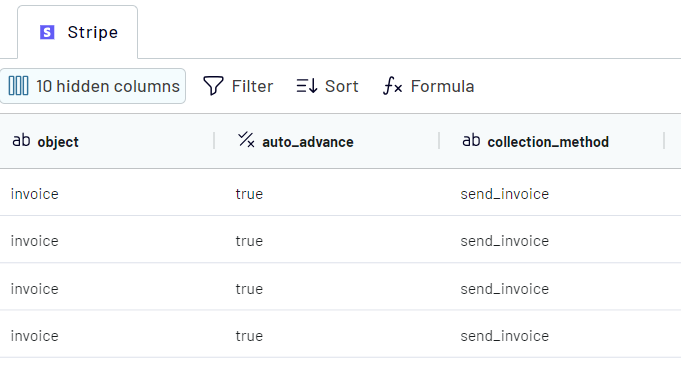
An important stage of the Stripe to Power BI integration is data preparation. Go to the Transformation tab and take a look at your data. See how Coupler.io can help you cleanse and organize your data to make it analysis-ready.
Step 3: Load and schedule refresh
The final step of the integration setup is to connect to your Power BI.
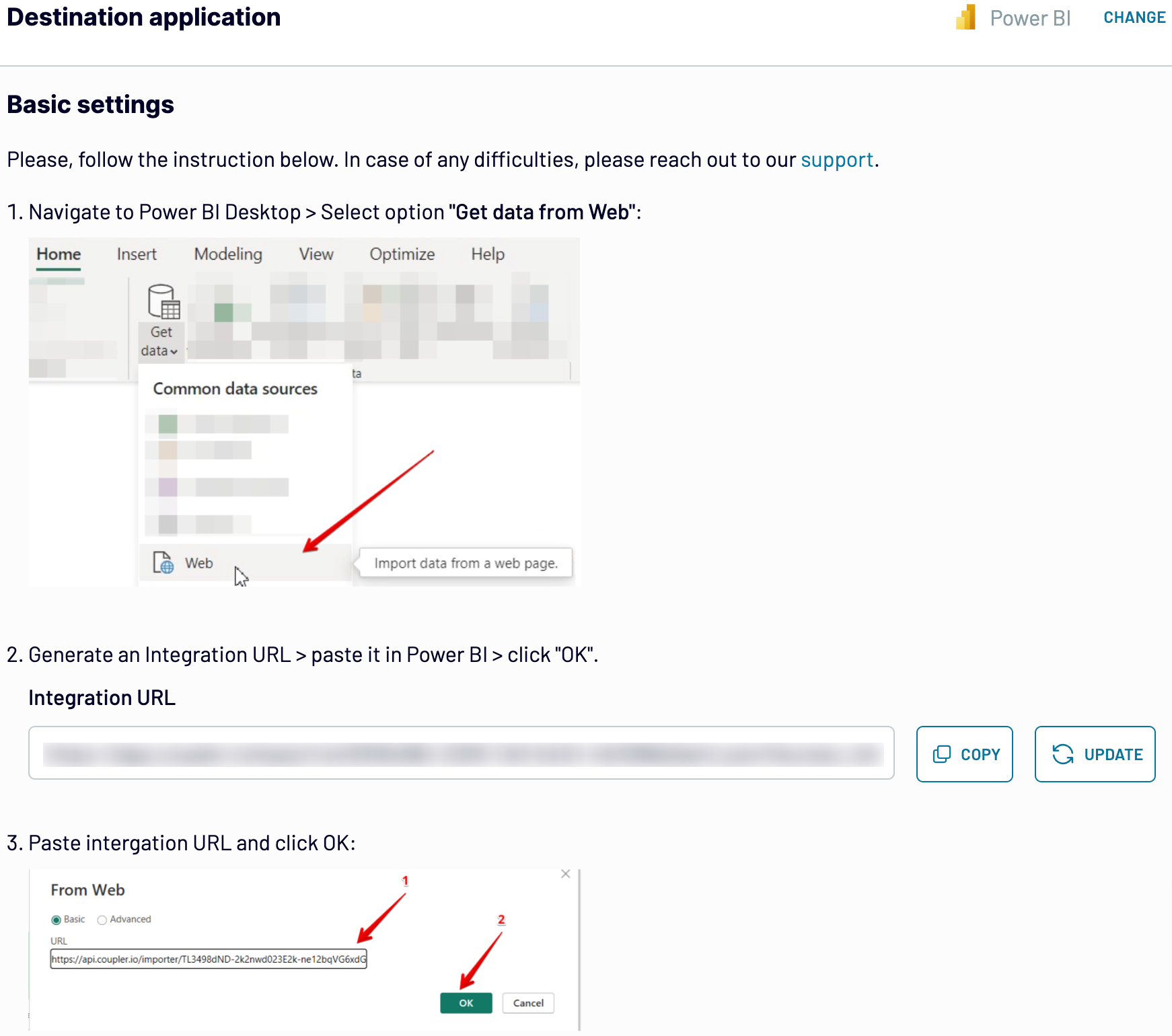
In the Destination tab, generate the integration link and copy it.
Then open your Power BI Desktop and navigate to the upper menu Get Data -> Web.
Paste the integration link in the field that appears and click OK.
Back in Coupler.io, proceed to the next step and select the scheduling parameters for regular data updates. This is an optional parameter, but it ensures regular data supply for your Power BI dashboards. So, if automated data exports interest you, set up the scheduling parameters. Otherwise, proceed directly to the checkout and save the importer.
First of all, make sure you have a Coupler.io account or create a new one (no credit card is required). Create an importer and enjoy a 3-step no-code setup to import data from Stripe to Power BI.
Step 1: Collect Stripe data
The first thing to do is authorize Coupler.io to access your Stipe data. Select Stripe as a source, click Connect, and follow the on-screen instructions. Afterward, pick up customer data, transactions, or payment details under the Data entity. Optionally, set the time period for your reporting and configure other parameters in the source settings.
Step 2: Organize & Transform
An important stage of the Stripe to Power BI integration is data preparation. Go to the Transformation tab and take a look at your data. See how Coupler.io can help you cleanse and organize your data to make it analysis-ready.
- Filter data by picking up the needed criteria to extract only the necessary data from the entire dataset.
- Sort data to make it more visually appealing and organized.
- Blend Stripe data with data from other apps and sources.
- Work with columns by rearranging, removing, and renaming them to brush a dataset.
- Design custom metrics by adding new columns and specifying mathematical formulas.
Step 3: Load and schedule refresh
The final step of the integration setup is to connect to your Power BI.
In the Destination tab, generate the integration link and copy it.
Then open your Power BI Desktop and navigate to the upper menu Get Data -> Web.
Paste the integration link in the field that appears and click OK.
Back in Coupler.io, proceed to the next step and select the scheduling parameters for regular data updates. This is an optional parameter, but it ensures regular data supply for your Power BI dashboards. So, if automated data exports interest you, set up the scheduling parameters. Otherwise, proceed directly to the checkout and save the importer.
Export Stripe to Power BI on a schedule
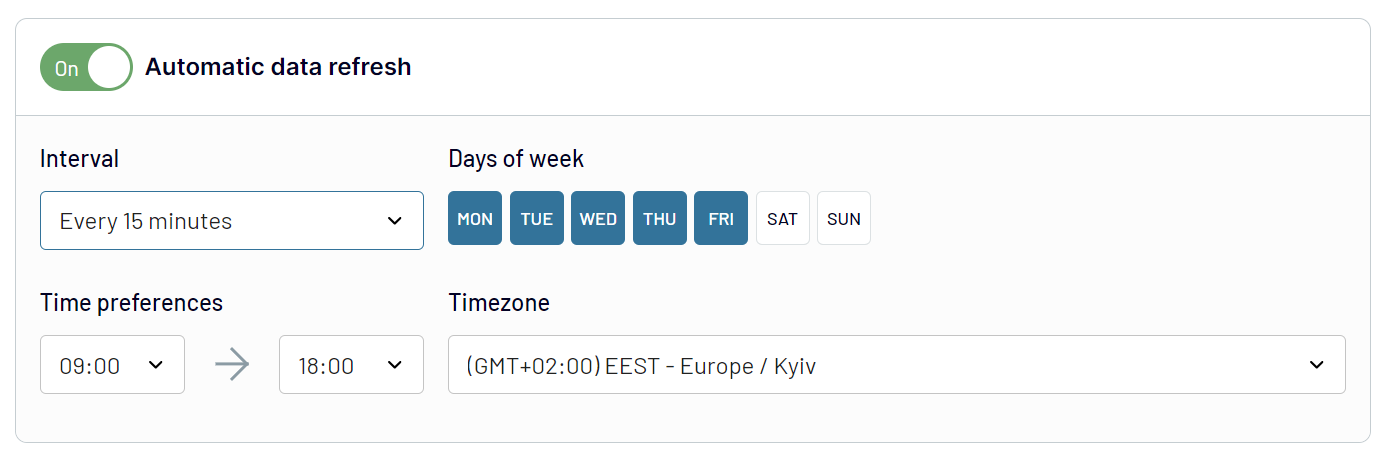
Sending data from Stripe to Power BI is a privilege for businesses. Automated data refreshes are fundamental for contemporary reporting and analysis. Set the update interval and specify the days of the week, time zone, and exact time. The available data refresh intervals range between 15 minutes to one month. Such flexibility guarantees that your reports reflect the latest data. With Coupler.io’s data refresh feature, your reports always reflect the most recent Stripe data. This helps to perform accurate financial analysis and enhance decision-making.
Thanks to this functionality, your report will keep up with the ever-updating source data.
Thanks to this functionality, your report will keep up with the ever-updating source data.
Export data from Stripe to alternative destinations


Quick start with Finance dashboard templates
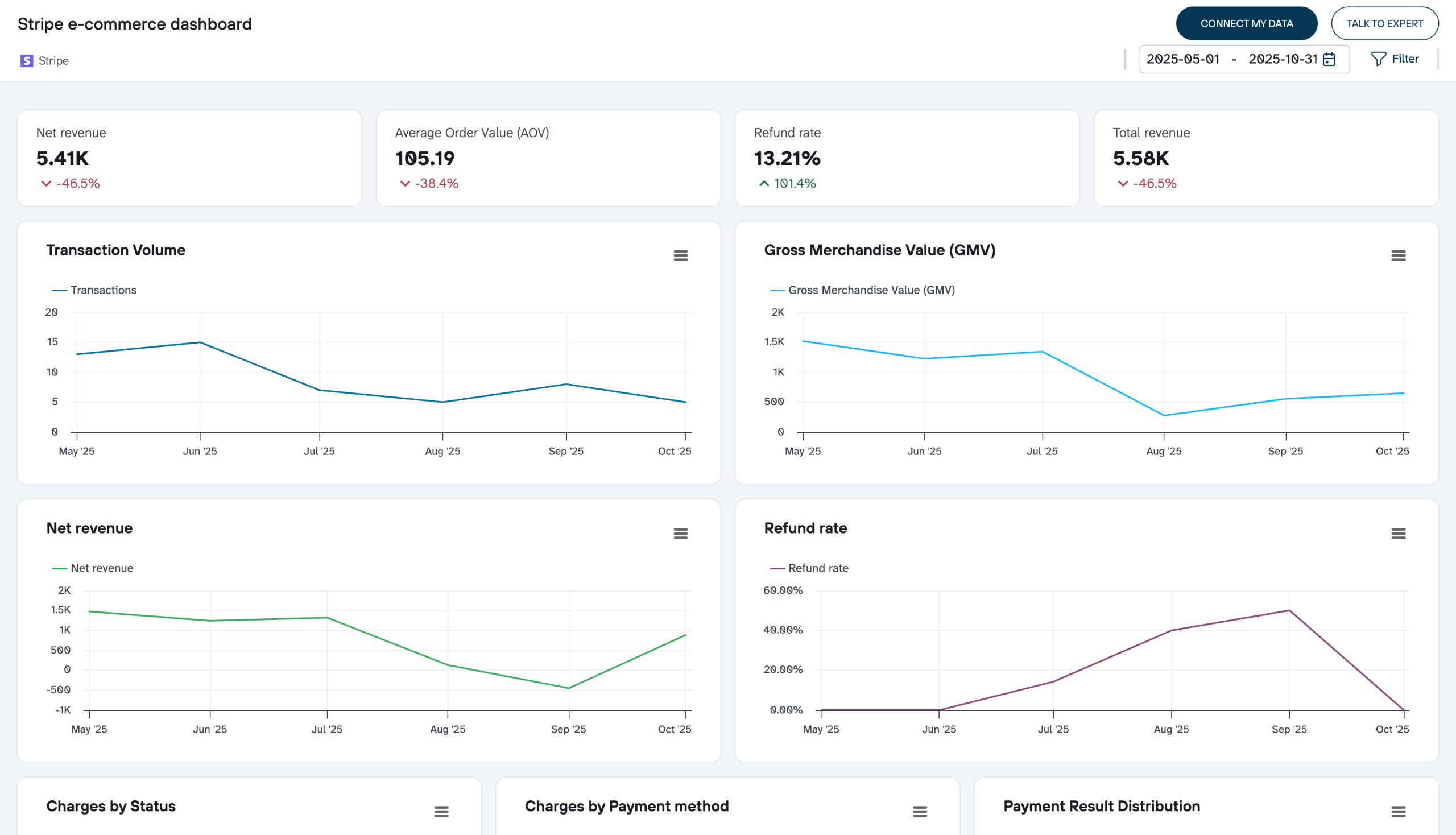


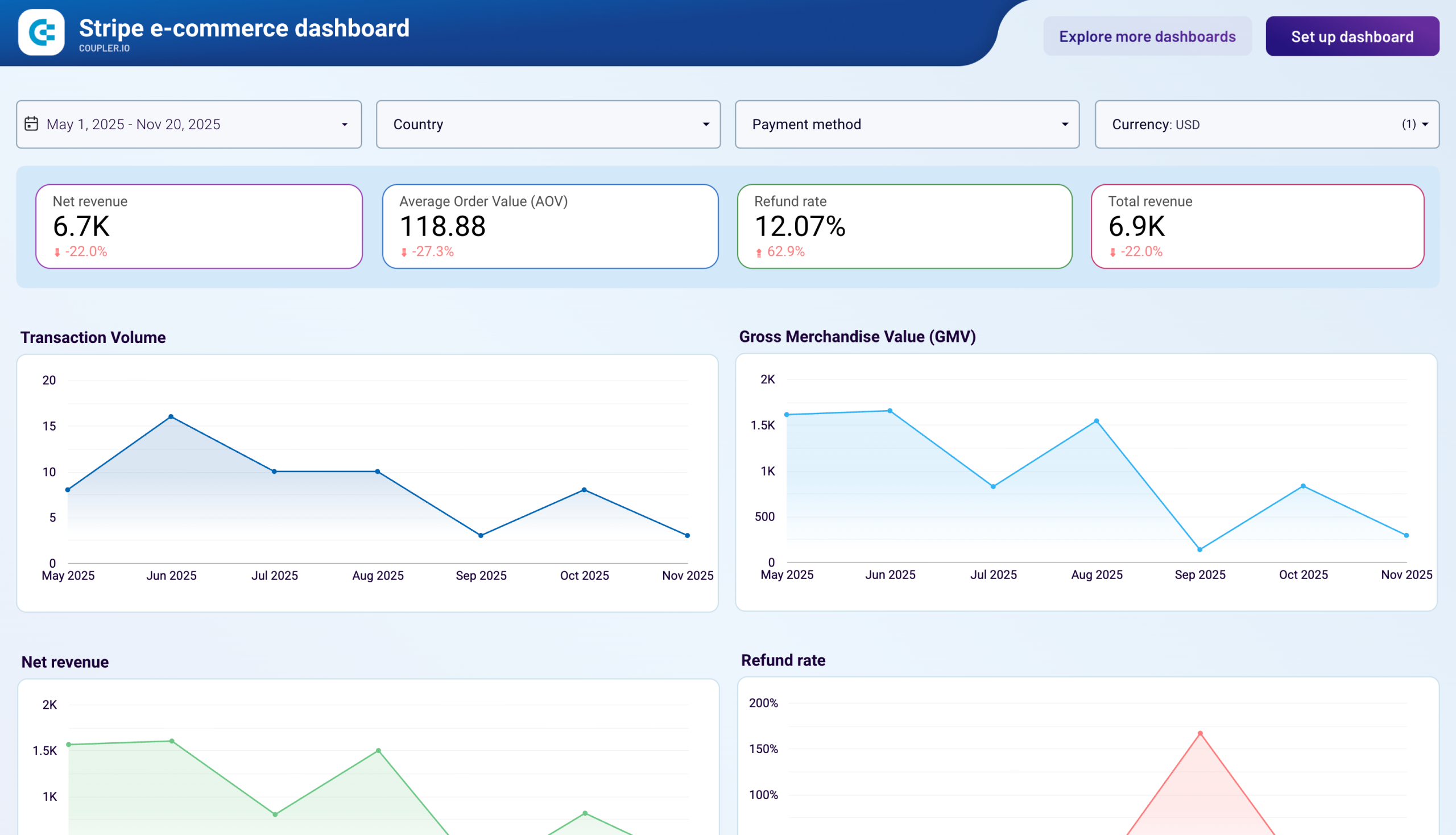
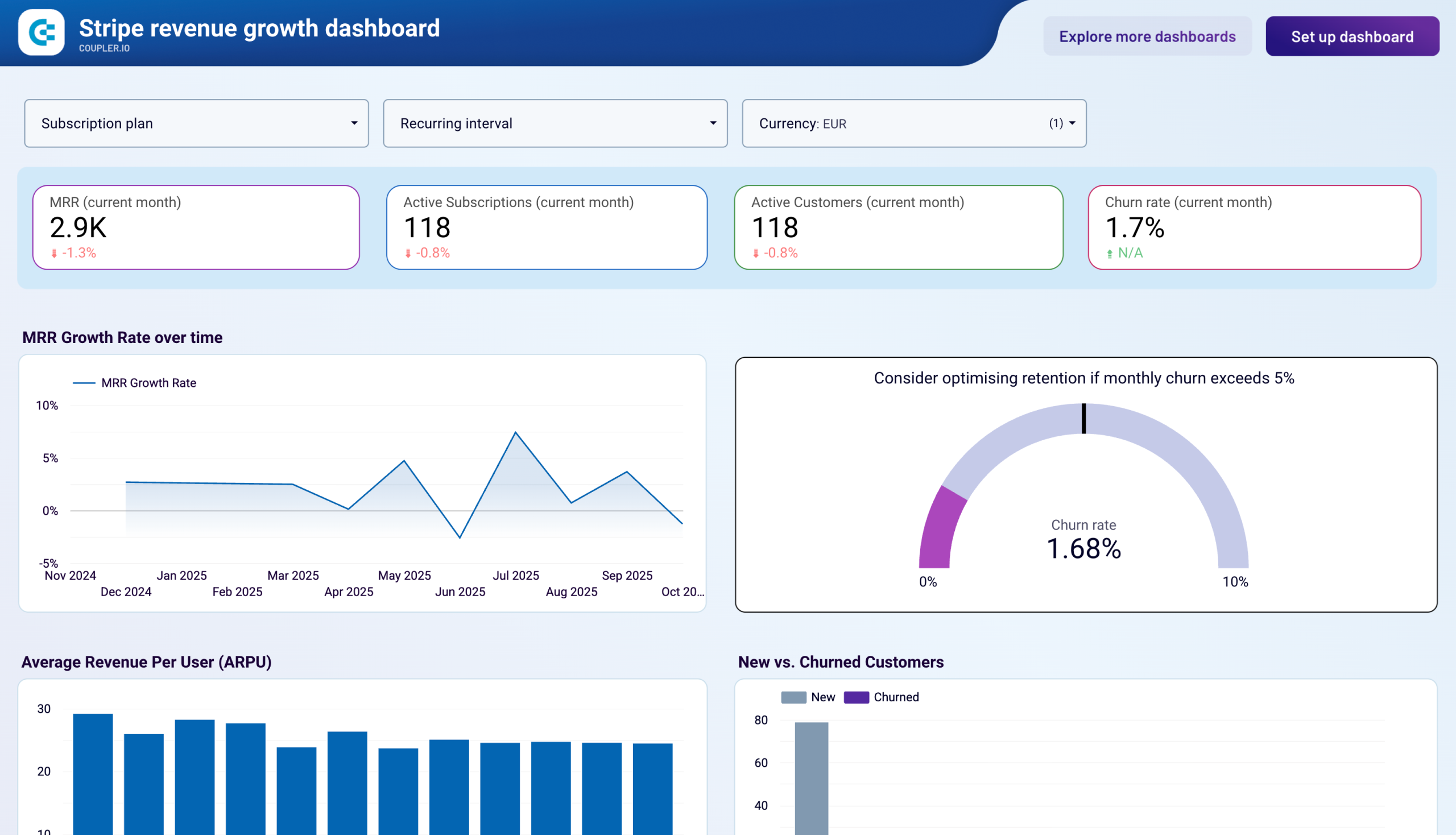
No such template is available yet.
No worries. Our team will create a template that fits your needs, just tell us more
about your case. It doesn't cost you a penny 😉
Request a custom report
about your case. It doesn't cost you a penny 😉
Export Stripe to Power BI automatically with just a few clicks.
Connect similar Finance & Accounting apps and get data in minutes


What to export from Stripe to Power BI

Payouts
Funds sent from Stripe to your bank account are the payout data. Connect Stripe to Power BI to analyze this data and get deep insights into payout trends. Explore the cash flow in detail and see how you can improve this process.
Plans
This data contains subscription-related details, including tiers, billing frequency, and so on. Import this data from Stripe to Power BI to visualize the most popular pricing plans. Use the obtained findings to elaborate on your pricing strategy.
Prices
This data contains the prices of all your products and services. Analyze it to reveal the impact of pricing on customer purchasing habits. See how you can adjust your pricing strategy to stay competitive and make more profits at the same time.
Products
This information contains the list of all products and services you offer. Send this data from Stripe to Power BI for analysis and visualization. This will help you track stock levels and make informed decisions when adjusting the product development roadmap.
Quotes
Detailed price estimates and information about leads are included in quotes. Analyze this data to get precise conversion rates and evaluate sales team performance. Use the obtained findings to increase conversions and optimize your sales processes.
Refunds
When a customer returns an item, Stripe processes the refund transaction. With the Stripe to Power BI integration, you can get insights into customer refund decisions. Get the percentage of refunds to the overall sales volume. See how you can increase customer satisfaction and reduce refunds.
Shipping Rates
This data contains information about the costs of domestic and international shipping. Visualize this data in Power BI to see how your shipping rates align with those of competitors. See how you can adjust shipping costs to meet the market average.
Subscription Schedules
Renewal dates and billing cycles are the principal details of subscription schedules. Send this data to Power BI to monitor subscription life cycles effectively. Detect the spikes in subscription renewals and explore the cancellation dynamics.
Subscriptions
This data contains all the active, canceled, and expired subscriptions. Send this data to Power BI to monitor the subscription choices and see how they impact revenue. Elaborate on subscription offers to increase revenue and customer loyalty.
Transfers
This covers the migration of funds within your Stripe account. Analyze this data in Power BI to ensure money flow tracking between accounts. Get better control over fund allocation for proper financial management.
How do you connect Stripe to Power BI?
Step 1. Connect your Stripe account and choose the type of data to export
30 seconds
Step 2. Organize and transform data before loading it into Power BI
30 seconds
Step 3. Generate and copy the integration URL to the Power BI desktop app
30 seconds
Step 4. Schedule auto-refreshes to export Stripe to Power BI at desired intervals
10 seconds
Pricing plans
- Monthly
- Annual (save 25%)
Your data is secured by industry standards
 SOC 2 Type II
Certified
 Google Cloud
Certified
 GDPR
GDPRCompliant
 HIPAA
HIPAACompliant
Don’t just take our word for it





Dramatically improved our reporting speed by about 60%. The interface is user-friendly, even for team members with no technical background.
Helped solve data processing issues, and customer service is 10/10. It is extremely easy to use, and allows us to extract data from multiple sources.