Connect Twitter Ads to Tableau
Load data from Twitter Ads to Tableau and schedule refresh without writing any code. Organize your advertising data to make it analysis-ready using Coupler.io transformation options. Create interactive dashboards to unlock insights essential for smart decision-making.


Connect Twitter Ads to Tableau with Coupler.io to automate marketing reporting

Get and prepare data effortlessly
Easily collect data from Twitter Ads to Tableau with Coupler.io's no-code integration. Use the intuitive interface to filter, apply custom functions, and transform your data for detailed reports. Schedule exports, merge information from various data sources, and optimize your workflow with our connectors.

Automate reporting tasks
Maximize your efficiency by automating the reporting process with Coupler.io. Connect Twitter Ads to Tableau and eliminate manual data entry. Generate simple yet insightful one-source and multi-source reports. Enhance your reporting with our extensive library of ready-to-use dashboard templates.

Stand out as a data-driven expert
Leverage Coupler.io to automate the entire process of data collection and transformation. Create dynamic and transparent advertising reports to gain valuable insights from your data. Focus more on strategic tasks and increase the proportion of data-driven decisions and showcase your expertise to your team.
How to connect Twitter Ads to Tableau (detailed guide)
Enhance your reporting processes with seamless API-based integration by Coupler.io. In just a few simple steps, you can access your Twitter Ads data, providing an overview of your ad campaign performance.
To automate data transfer from Twitter Ads to Tableau, follow these three straightforward steps:
Step 1: Collect data
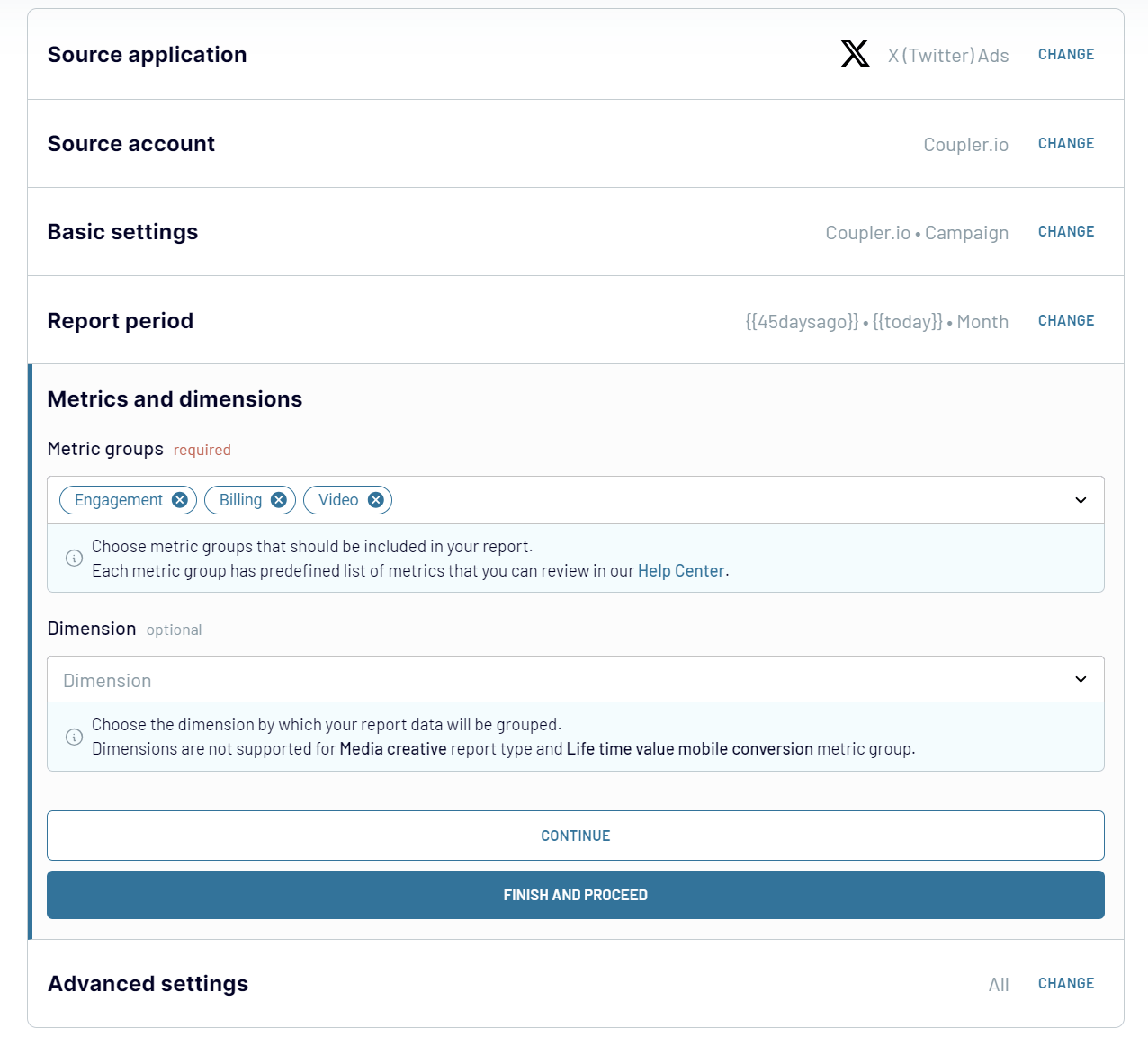
Step 2: Organize & Transform Data
After establishing the connection, the next phase is to organize and refine your data before loading it into Tableau. Coupler.io provides various options to help you:
Step 3: Load & Automate
As the final step, load your Twitter Ads data to Tableau. To do this, open the Tableau desktop application, go to More... and select Web Data Connector.
Enter the following URL:
https://app.coupler.io/tools/tableau
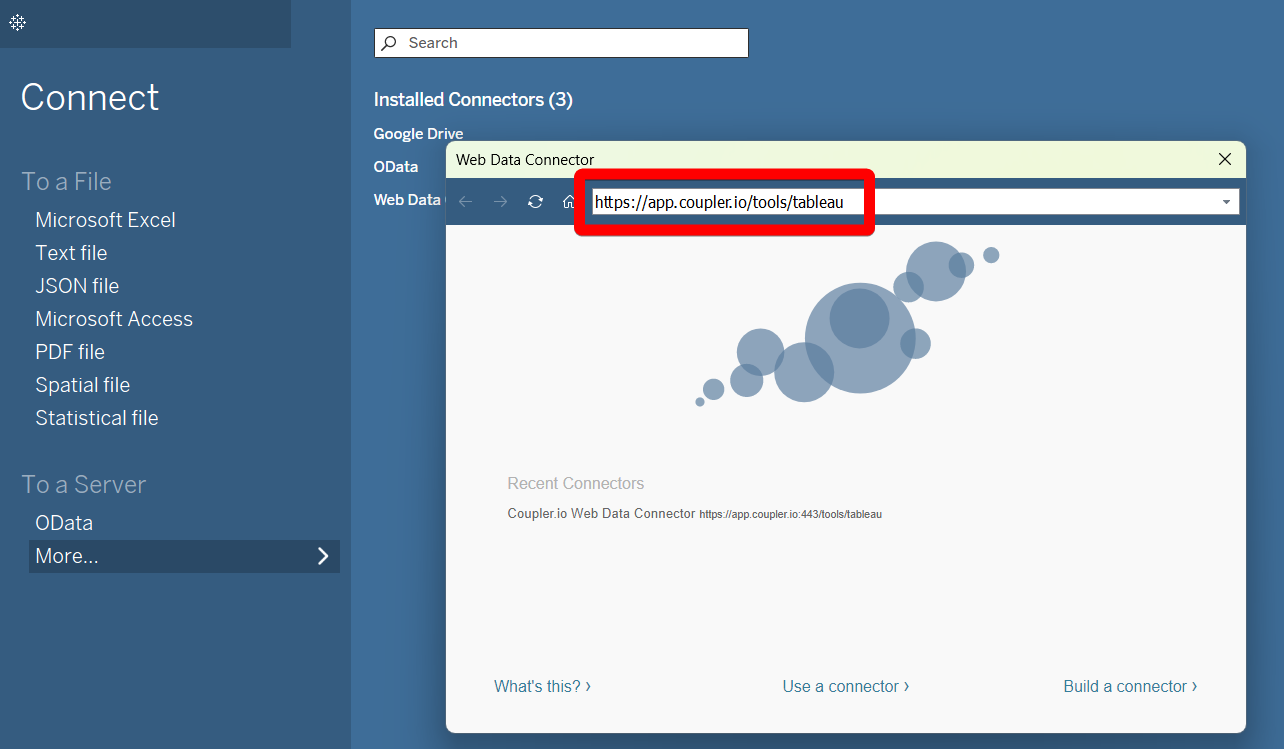
Go back to Coupler.io and generate an integration link. You'll need it later. But first, finalize the importer setup and run it.
Back in the Tableau desktop, enter the generated integration URL in the respective field. You may also specify a table name if you want.
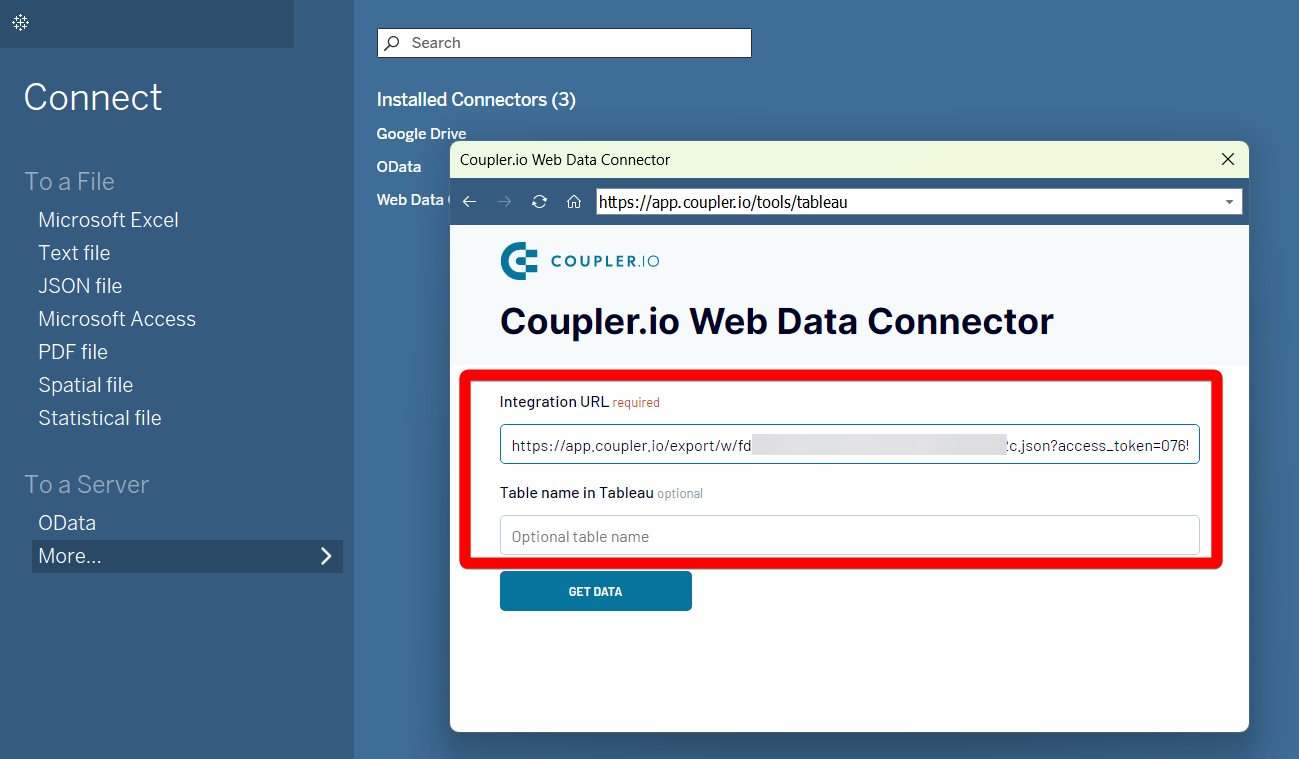
Click Get Data and allow the system to execute your query. In a few moments, your Twitter Ads to Tableau integration is complete.
It also makes sense to set up an automatic refresh schedule to automate the integration. This way, you can save time and ensure your data is consistently up-to-date for analysis.
To automate data transfer from Twitter Ads to Tableau, follow these three straightforward steps:
Step 1: Collect data
- First, connect Coupler.io to your Twitter Ads account. Then, choose the report type you wish to export from the drop-down list. Specify your report's start and end dates and select the period to split the data: month, day, or hour.
- Next, choose the metric groups to include in your report. Optionally, you can add dimensions to group your data. Finally, configure the placement parameter by selecting the placement type to include in the report: all, all on X, or publisher network.
Step 2: Organize & Transform Data
After establishing the connection, the next phase is to organize and refine your data before loading it into Tableau. Coupler.io provides various options to help you:
- Preview and inspect your data: Ensure accuracy and relevance.
- Apply filters: Extract more pertinent data sets.
- Sort and organize information: Efficiently manage your data structure.
- Customize column names or rearrange them: Tailor the presentation of your data.
- Create custom columns using formulas: Enhance data analysis.
Step 3: Load & Automate
As the final step, load your Twitter Ads data to Tableau. To do this, open the Tableau desktop application, go to More... and select Web Data Connector.
Enter the following URL:
https://app.coupler.io/tools/tableau
Go back to Coupler.io and generate an integration link. You'll need it later. But first, finalize the importer setup and run it.
Back in the Tableau desktop, enter the generated integration URL in the respective field. You may also specify a table name if you want.
Click Get Data and allow the system to execute your query. In a few moments, your Twitter Ads to Tableau integration is complete.
It also makes sense to set up an automatic refresh schedule to automate the integration. This way, you can save time and ensure your data is consistently up-to-date for analysis.
Automate dataflow from Twitter Ads to Tableau on a schedule
To connect Twitter Ads to Tableau means automating data flow between the two apps. Coupler.io allows you to do this by enabling the automatic data refresh. It enables real-time analytics delivery directly into your Tableau database.
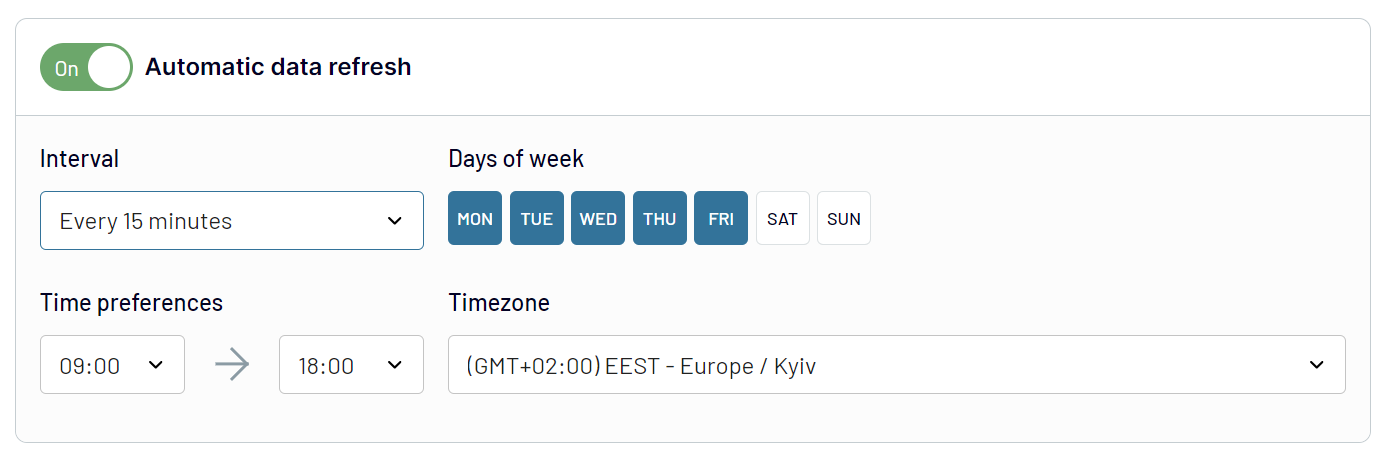
Customize the frequency of data updates to suit your business needs. Whether you need monthly updates for trend analysis or 15-minute refresh intervals for live campaign monitoring, Coupler.io has you covered. Tailor your updated schedule with the following options:
Customize the frequency of data updates to suit your business needs. Whether you need monthly updates for trend analysis or 15-minute refresh intervals for live campaign monitoring, Coupler.io has you covered. Tailor your updated schedule with the following options:
- Select specific days of the week: Determine which days you want your data to be refreshed.
- Set specific times of the day: Choose the exact times for data updates to occur.
- Specify your time zone: Ensure that updates happen according to your local time zone.
Export data from X (Twitter) Ads to alternative destinations


Quick start with PPC dashboard templates
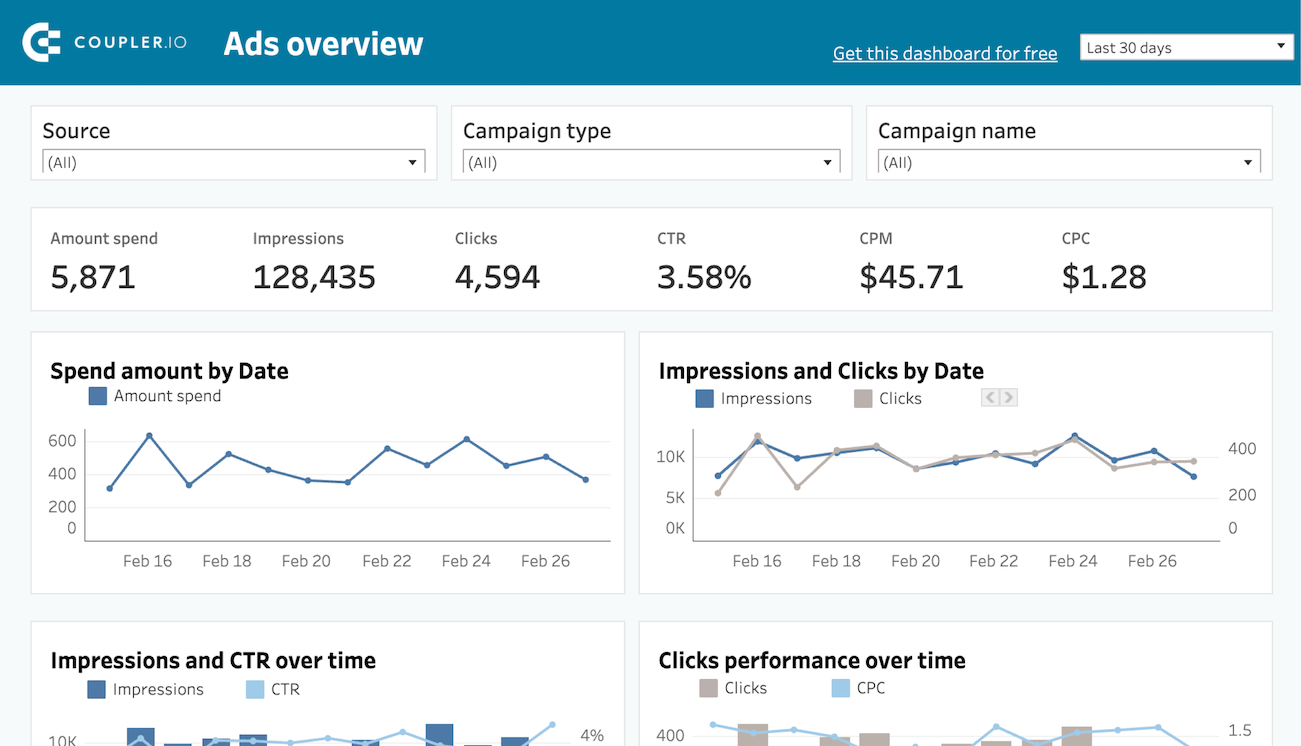
PPC multi-channel dashboard in Tableau


 +0
+0

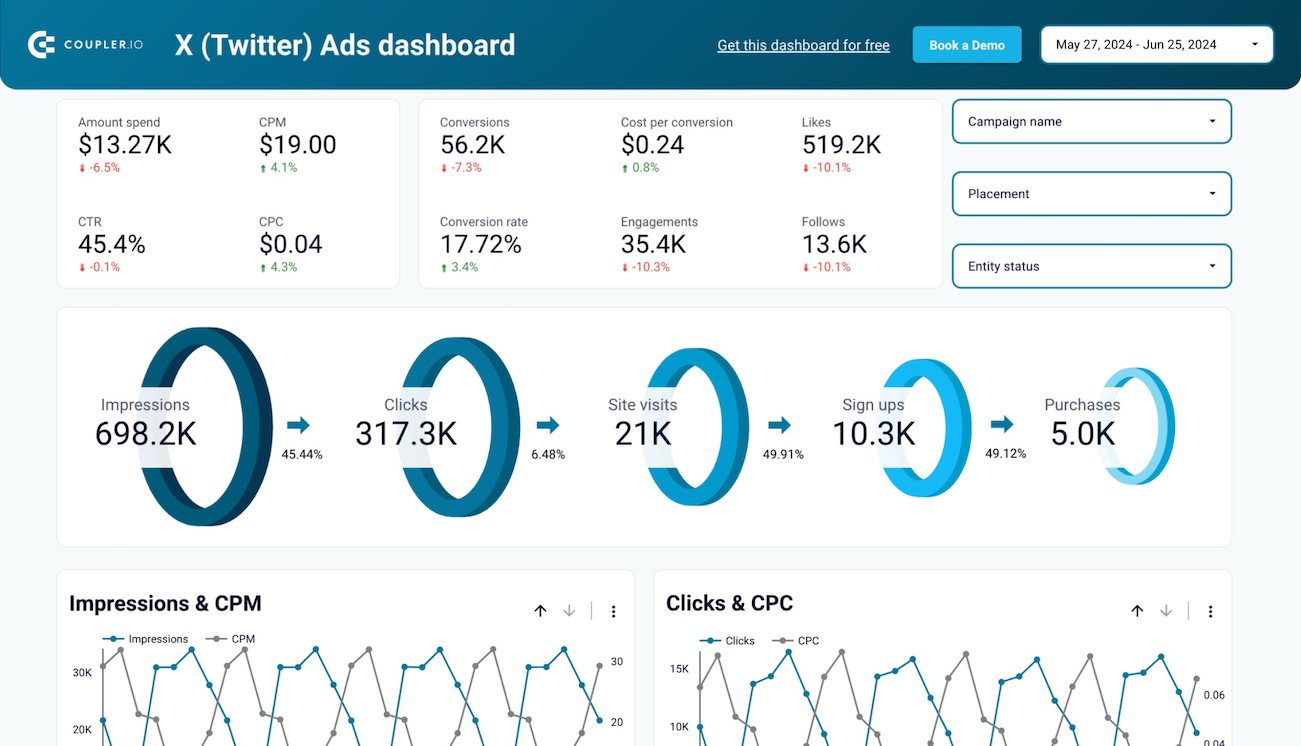
X (Twitter) Ads dashboard
+0

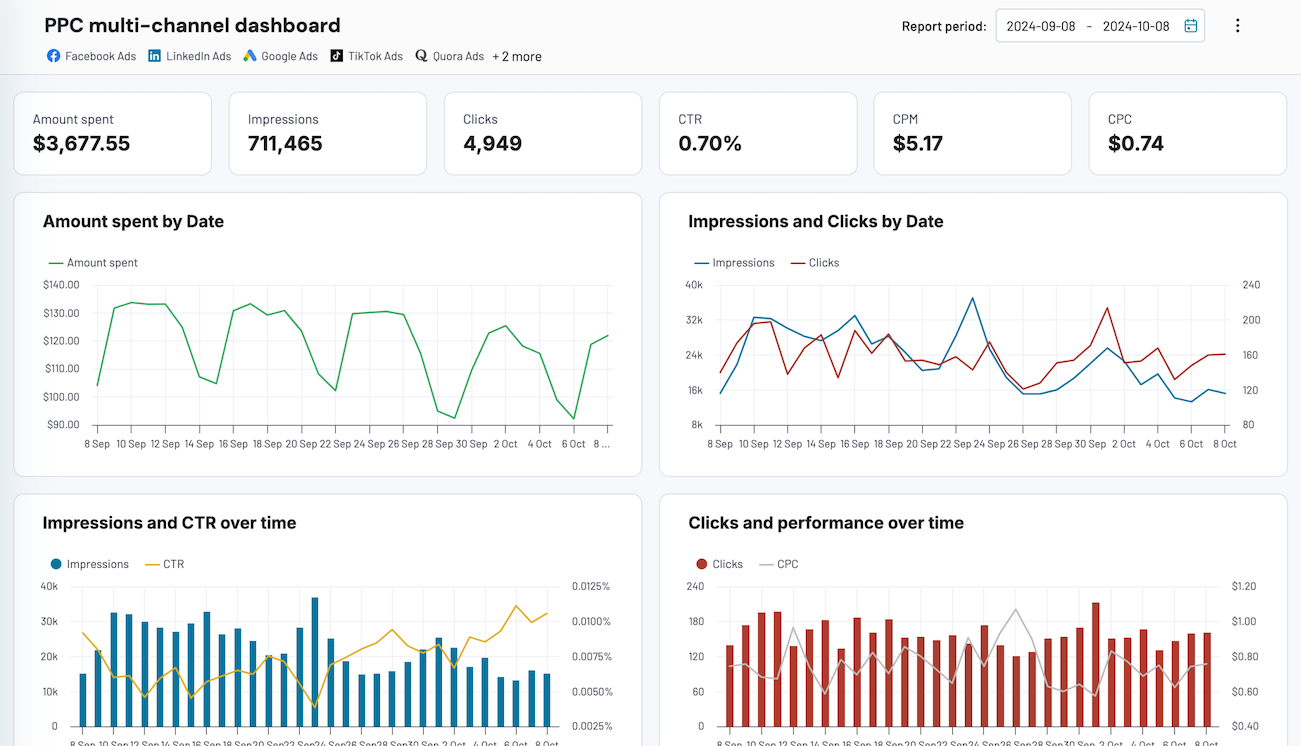
PPC multi-channel dashboard

 +3
+3

No such template is available yet.
No worries. Our team will create a template that fits your needs, just tell us more
about your case. It doesn't cost you a penny 😉
Request a custom report
about your case. It doesn't cost you a penny 😉
Set up a Twitter Ads to Tableau integration with just a few clicks.
Connect similar PPC apps and get data in minutes


Load data from Twitter Ads to Tableau: what to export

Campaign
Campaign data lets you evaluate overall performance, budget allocation, and achievement of objectives. This report includes metrics that help you understand the effectiveness of each campaign. Use these insights to adjust strategies and maximize ROI.
Funding Instrument
Explore detailed funding sources, including spending limits, current balances, and funding source types for each campaign. With this data, you can manage finances precisely and plan future advertising efforts effectively.
Line Items
With line item data, you can gain granular insights into specific ad placements and targeting criteria. You can also make a detailed performance analysis by audience segment, ad format, or bid strategy. Based on these insights, you can optimize your ad spend for better results.
Media Creative
Export media creative data to evaluate the efficiency of your creative assets. This includes reports on which visuals, videos, or texts drive engagement and conversions. Understand what resonates with your audience to improve the creative part of future campaigns.
Promoted Account
Export promoted account data to analyze the effectiveness of your account promotion efforts. Track follower growth and engagement rates to see how visibility increases from promoted activities. This data is essential for evaluating brand awareness and audience expansion strategies.
Account
Analyze the account data to get an overview of your account's operational metrics. These include user roles, permission levels, and account settings. With this information, you can maintain account security and ensure appropriate access for stakeholders.
Promoted Tweet
Export promoted tweet data to get detailed analytics of tweet performance. Analyze engagement rates, reach, and interaction types to measure content effectiveness. Use this information to craft more relevant messages and effectively engage your target audience.
How to connect Twitter Ads to Tableau
Step 1. Connect your Twitter Ads account and choose a data entity to export
30 seconds
Step 2. Organize and transform data before loading it to Tableau
30 seconds
Step 3. Generate an integration URL to use in the Tableau desktop app to load your data
30 seconds
Step 4. Schedule data refresh to automate data flow from Twitter Ads to Tableau
10 seconds
Pricing plans
- Monthly
- Annual (save 25%)
Your data is secured by industry standards
 Google Cloud
Certified
 SOC 2 Type II
Certified
 GDPR
GDPRCompliant
 HIPAA
HIPAACompliant
Don’t just take our word for it





Dramatically improved our reporting speed by about 60%. The interface is user-friendly, even for team members with no technical background.
Helped solve data processing issues, and customer service is 10/10. It is extremely easy to use, and allows us to extract data from multiple sources.