Connect Jira to Tableau
Connect Jira to Tableau with the help of Coupler.io and automate data imports without coding skills. Extract data, transform it according to your preferences, and create insight-rich reports for transformative analytics in as little as a few steps.


Connect Jira to Tableau with Coupler.io to simplify reporting

Get and prepare data effortlessly
Export Jira to Tableau even if you have never dealt with coding. Using the Coupler.io reporting automation platform, you can query data in numerous ways, set up automated refreshes on schedule, and collect insights from multiple apps into a single dataset.

Automate reporting tasks
If you automate data transfers from Jira to Tableau, there will be much fewer manual tasks on your list. It takes a couple of minutes to transform raw source data into meaningful reports in the destination and visualize it with our free dashboard templates.

Stand out as a data-driven expert
Secure your reputation among clients and stakeholders by impressing them with Tableau reports that speak volumes about your expertise. Delegate monotonous reporting tasks to Coupler.io and immerse yourself in long-term objectives.
Export data from Jira to alternative destinations


Quick start with Project Management dashboard templates
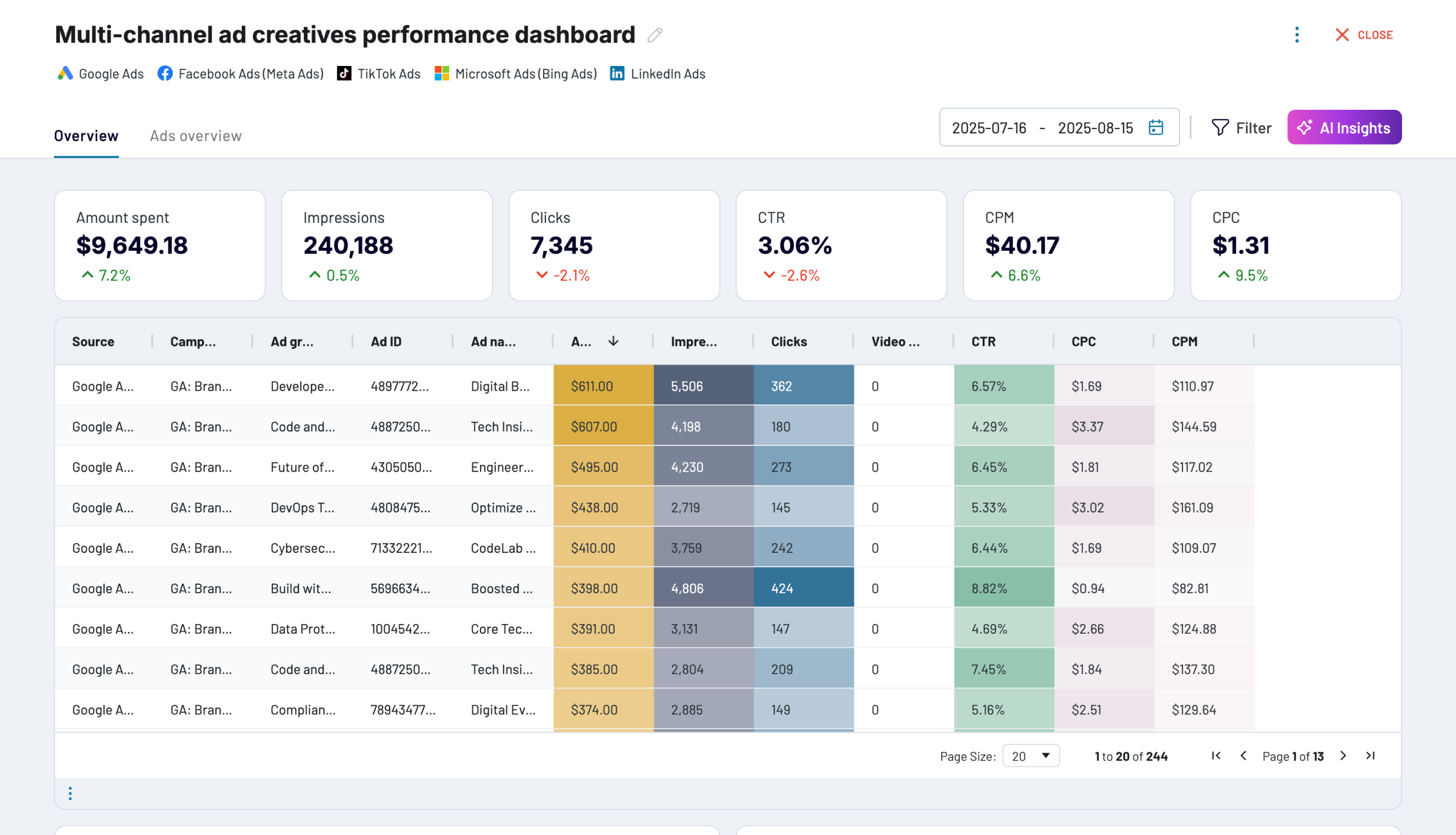
Multi-channel ad creatives performance dashboard


 +0
+0


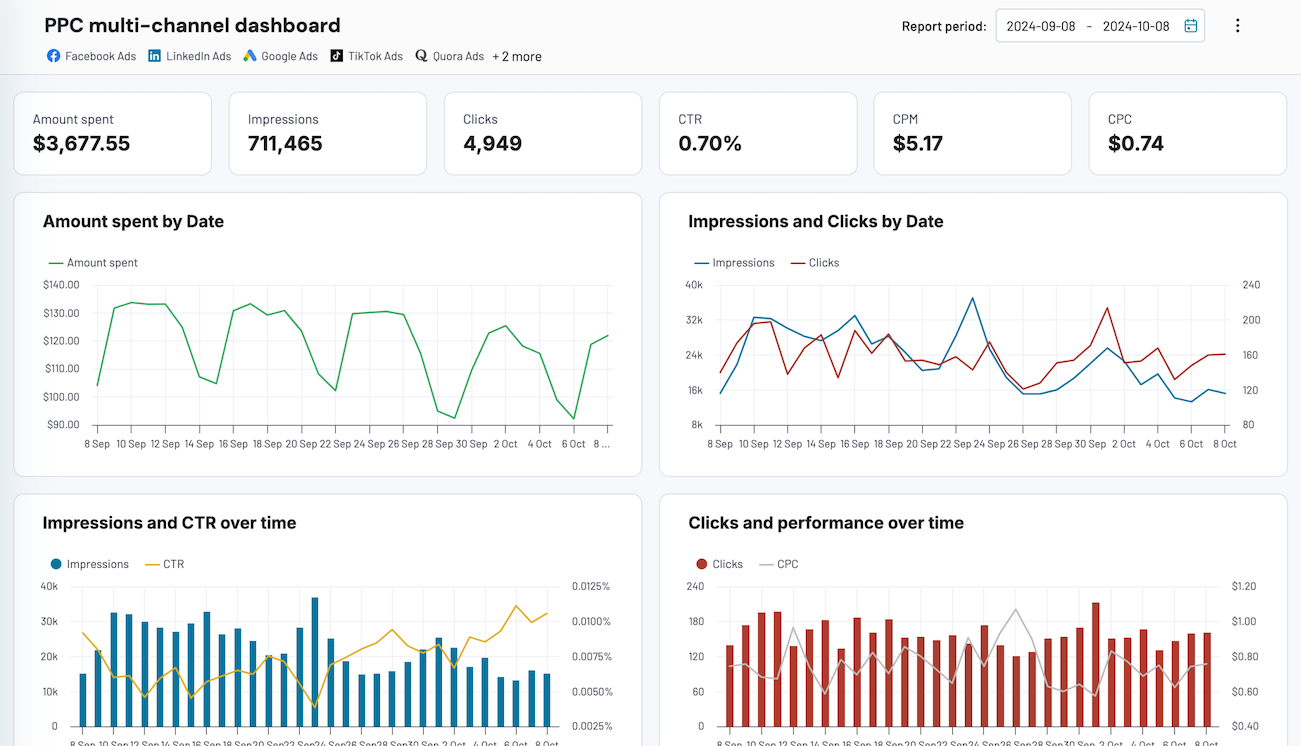
PPC multi-channel dashboard


 +3
+3
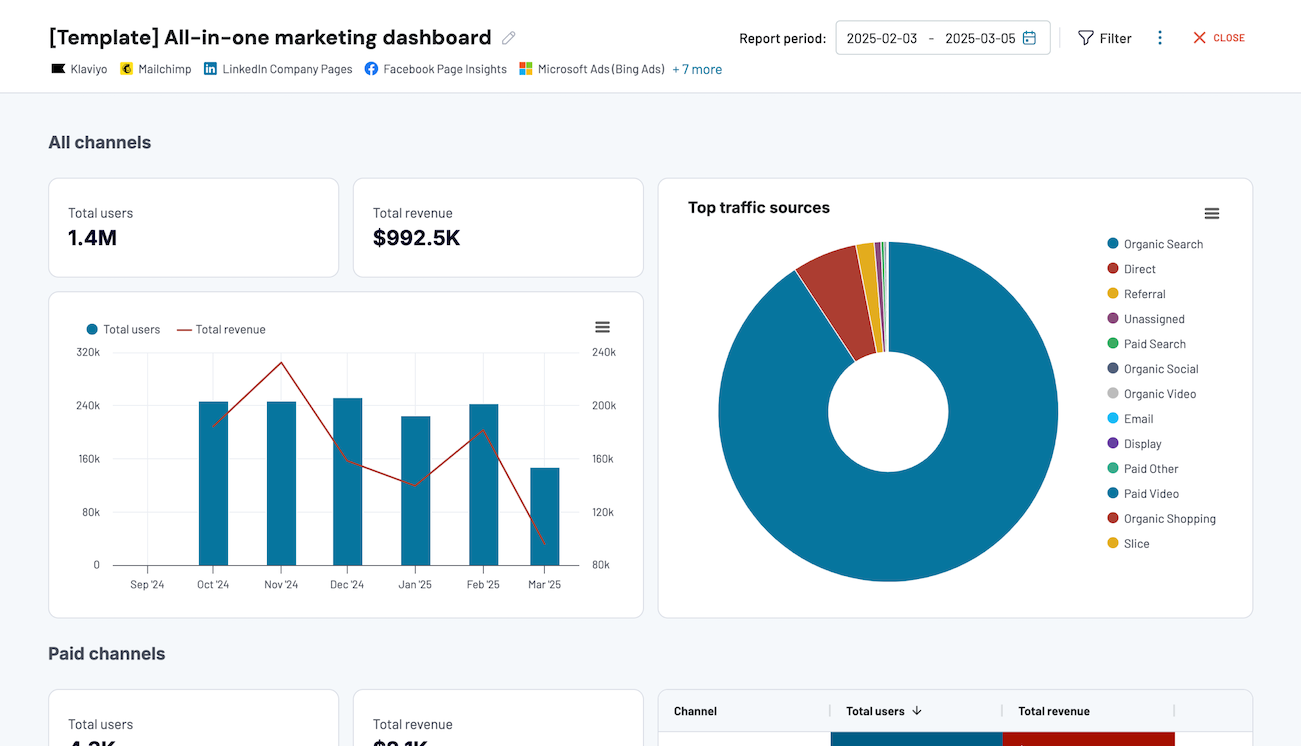
All-in-one marketing dashboard


 +6
+6
No such template is available yet.
No worries. Our team will create a template that fits your needs, just tell us more
about your case. It doesn't cost you a penny 😉
Request a custom report
about your case. It doesn't cost you a penny 😉
Export Jira to Tableau automatically with just a few clicks.
Connect similar Project Management apps and get data in minutes


What to export from Jira to Tableau

Custom Queries of Issues Using JQL
With JQL, you can run tailored queries to extract specific issues from Jira. This allows you to customize data for your exact reporting needs. Whether it’s tracking high-priority bugs or monitoring workload distribution, JQL gives you the flexibility to drill down into any issue category. Use custom queries to export specific information required for detailed analysis and sharper insights into project performance.
Filtered Issues in Jira
Filtered issues help you focus on the data that’s most important to your current priorities. Enter the ID of the saved filters in Jira to export issues by project, status, or assignee. This makes it easier to manage your workload and analyze specific project segments. It enables you to monitor project progress, detect potential bottlenecks, elevate workflow efficiency, and adjust project management strategies.
How do you connect Jira to Tableau?
Step 1. Connect your Jira account
30 seconds
Step 2. Organize and transform data before loading it into Tableau
30 seconds
Step 3. Generate a link to the integration URL, which you will use later
30 seconds
Step 4. Schedule updates and follow instructions to export Jira to Tableau
10 seconds
Pricing plans
- Monthly
- Annual (save 25%)
Your data is secured by industry standards
 SOC 2 Type II
Certified
 Google Cloud
Certified
 GDPR
GDPRCompliant
 HIPAA
HIPAACompliant
Don’t just take our word for it





Dramatically improved our reporting speed by about 60%. The interface is user-friendly, even for team members with no technical background.
Helped solve data processing issues, and customer service is 10/10. It is extremely easy to use, and allows us to extract data from multiple sources.
How to connect Jira to Tableau (detailed guide)
To connect Jira to Tableau and further import data, follow the step-by-step guide below:
Step 1: Collect data
First, connect your Jira account. Next, you can adjust the optional settings. For instance, you will be offered the option to specify a Jira Cloud instance with data you would like to export, choose particular columns to load, and others.
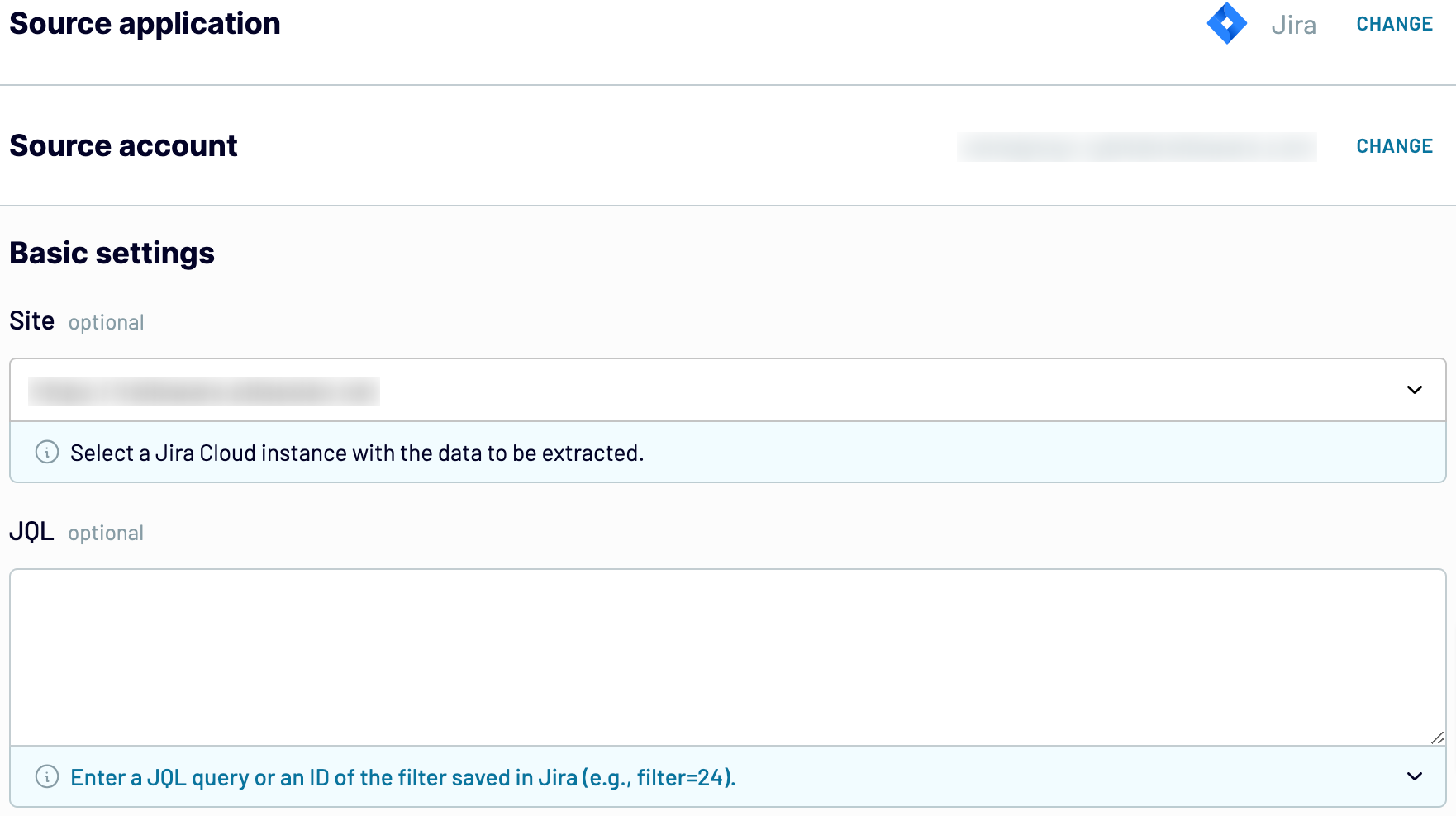
As soon as you finish with the source settings, proceed to the transformations step.
Step 2: Organize & Transform
Before importing Jira to Tableau, you can preview your data to check whether it is accurate. If there is something you would like to change, consider making the following adjustments:
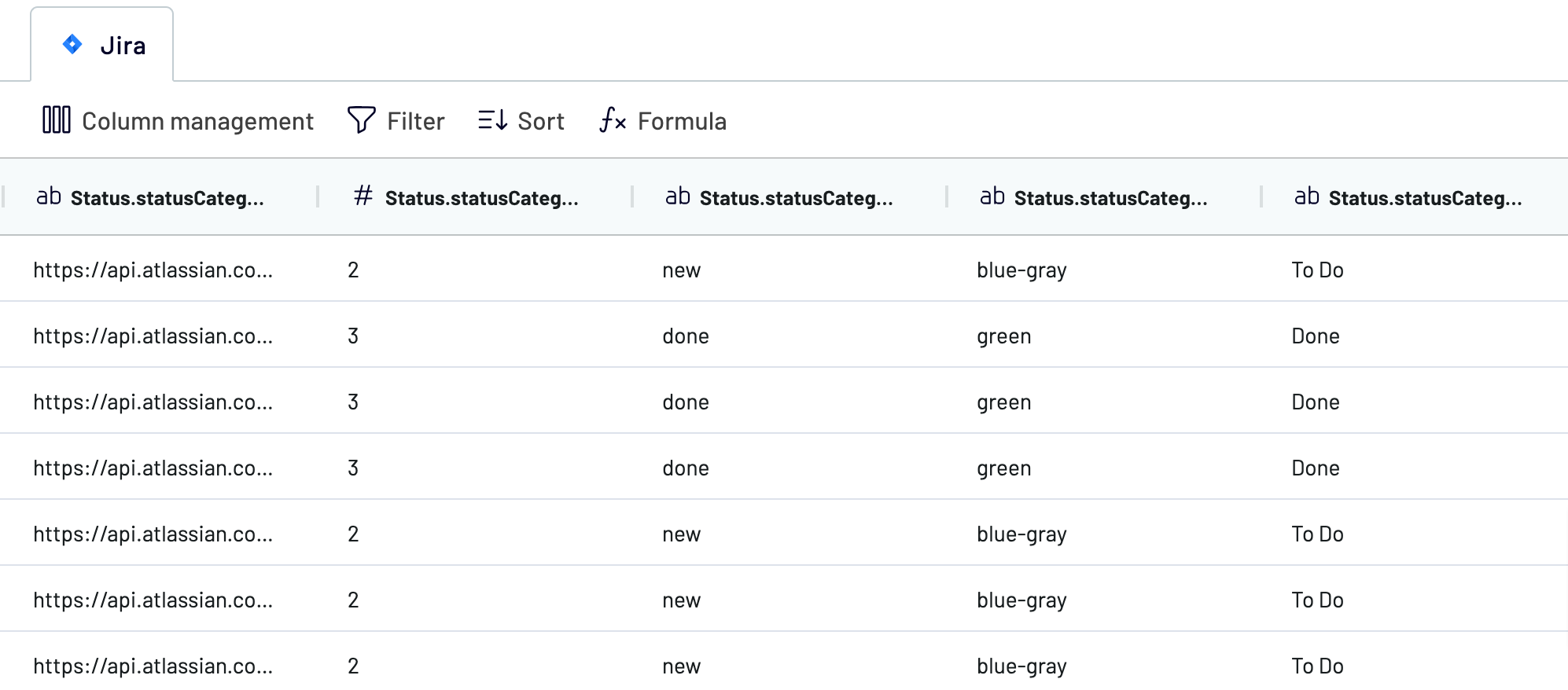
When you make sure that data meets your expectations, move to the destination settings.
Step 3: Load & Automate
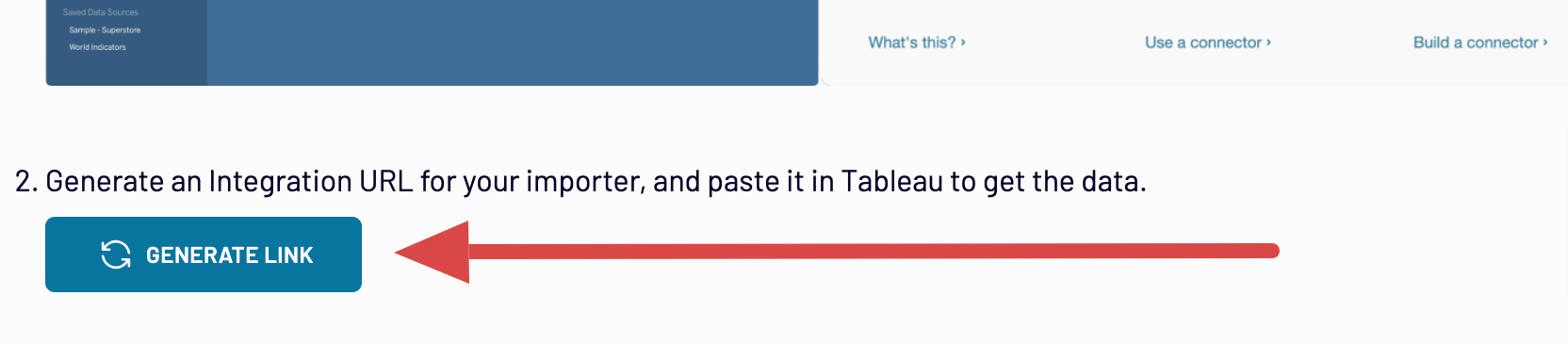
Generate a link to the integration URL. Then, set up a schedule for automated refreshes and run the importer. To finally transfer your data from Jira to Tableau, follow the connector setup instructions to complete the connection.
Step 1: Collect data
First, connect your Jira account. Next, you can adjust the optional settings. For instance, you will be offered the option to specify a Jira Cloud instance with data you would like to export, choose particular columns to load, and others.
As soon as you finish with the source settings, proceed to the transformations step.
Step 2: Organize & Transform
Before importing Jira to Tableau, you can preview your data to check whether it is accurate. If there is something you would like to change, consider making the following adjustments:
- Edit, rearrange, hide, or add columns.
- Apply various filters and sort your data.
- Create new columns with custom formulas.
- Combine data from multiple accounts or apps.
When you make sure that data meets your expectations, move to the destination settings.
Step 3: Load & Automate
Generate a link to the integration URL. Then, set up a schedule for automated refreshes and run the importer. To finally transfer your data from Jira to Tableau, follow the connector setup instructions to complete the connection.
Connect Jira to Tableau and automate data imports on schedule
To maintain your Tableau report in line with the latest changes to the source data, you must enable automated refreshes. This capability allows your report to update automatically without needing manual input. You can set the frequency to your liking, choosing from options like monthly, daily, hourly, or even as frequently as every 30 or 15 minutes.
Moreover, you can select the specific days of the week, the desired time slot, and the applicable time zone.
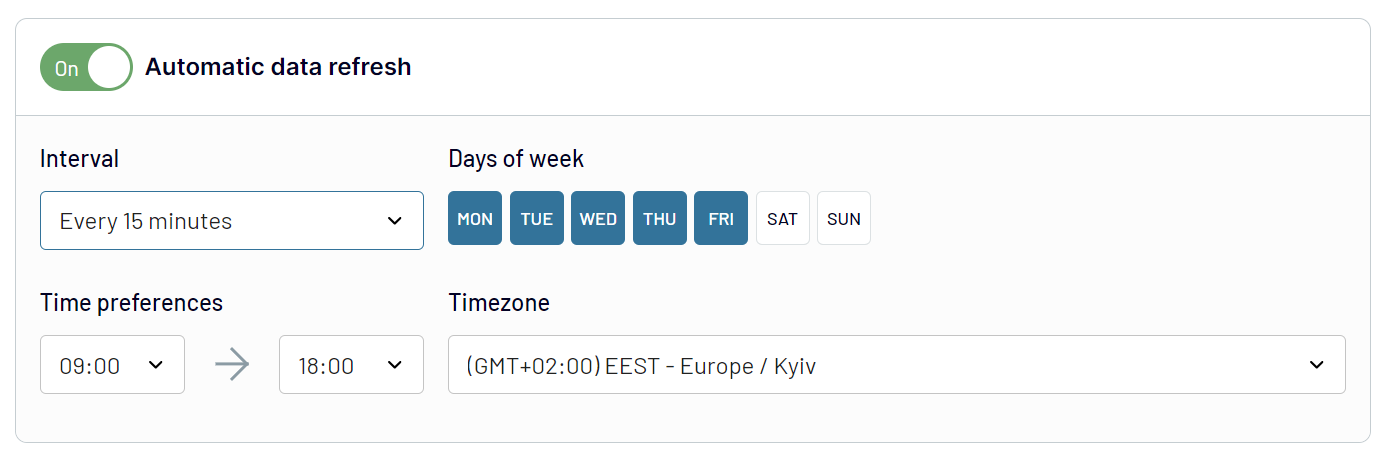
Thanks to auto-refreshes configured at preferred intervals, your report will always be supplied with the most recent data.
Moreover, you can select the specific days of the week, the desired time slot, and the applicable time zone.
Thanks to auto-refreshes configured at preferred intervals, your report will always be supplied with the most recent data.
Replace or append the data you export from Jira to Tableau
Coupler.io offers various import modes tailored to fetch data from multiple sources.
To take advantage of this functionality, simply click the corresponding button to start connecting other applications when adjusting the source settings. Then, you'll proceed through a process much the same as setting up your initial data source.
Coupler.io supports integration with a wide range of apps or different accounts of the same one without creating additional importers.
Furthermore, the data exported from multiple sources can be merged into a single dataset. Using this opportunity, you can combine Excel data with relevant records from other platforms.
Once you've added the needed sources and reached the transformation step, you can unite your data in two ways:
Through the integration of diverse sources, you can analyze larger data amounts at the same time. This way, you ensure a multifaceted interpretation of your data.
To take advantage of this functionality, simply click the corresponding button to start connecting other applications when adjusting the source settings. Then, you'll proceed through a process much the same as setting up your initial data source.
Coupler.io supports integration with a wide range of apps or different accounts of the same one without creating additional importers.
Furthermore, the data exported from multiple sources can be merged into a single dataset. Using this opportunity, you can combine Excel data with relevant records from other platforms.
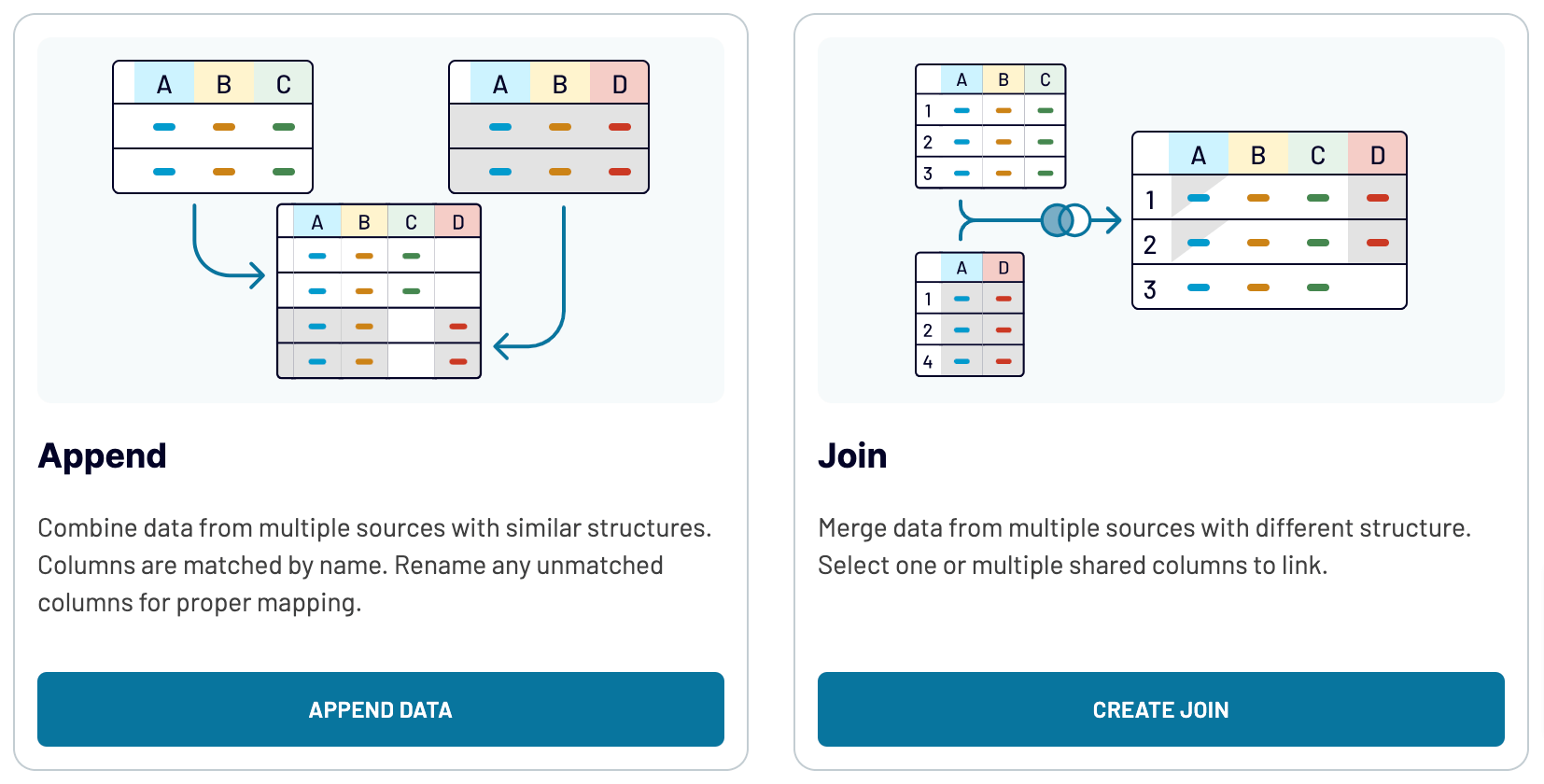
Once you've added the needed sources and reached the transformation step, you can unite your data in two ways:
- Append: Blend data from one source into another, provided they share identical column names.
- Join: Merge your datasets side-by-side with at least one matching column name.
Through the integration of diverse sources, you can analyze larger data amounts at the same time. This way, you ensure a multifaceted interpretation of your data.
Export Jira to Tableau or another destination
Apart from the option to connect Jira to Tableau, Coupler.io makes it possible for you to replicate data importers. This way, you can load your data into a wide variety of alternative destinations:
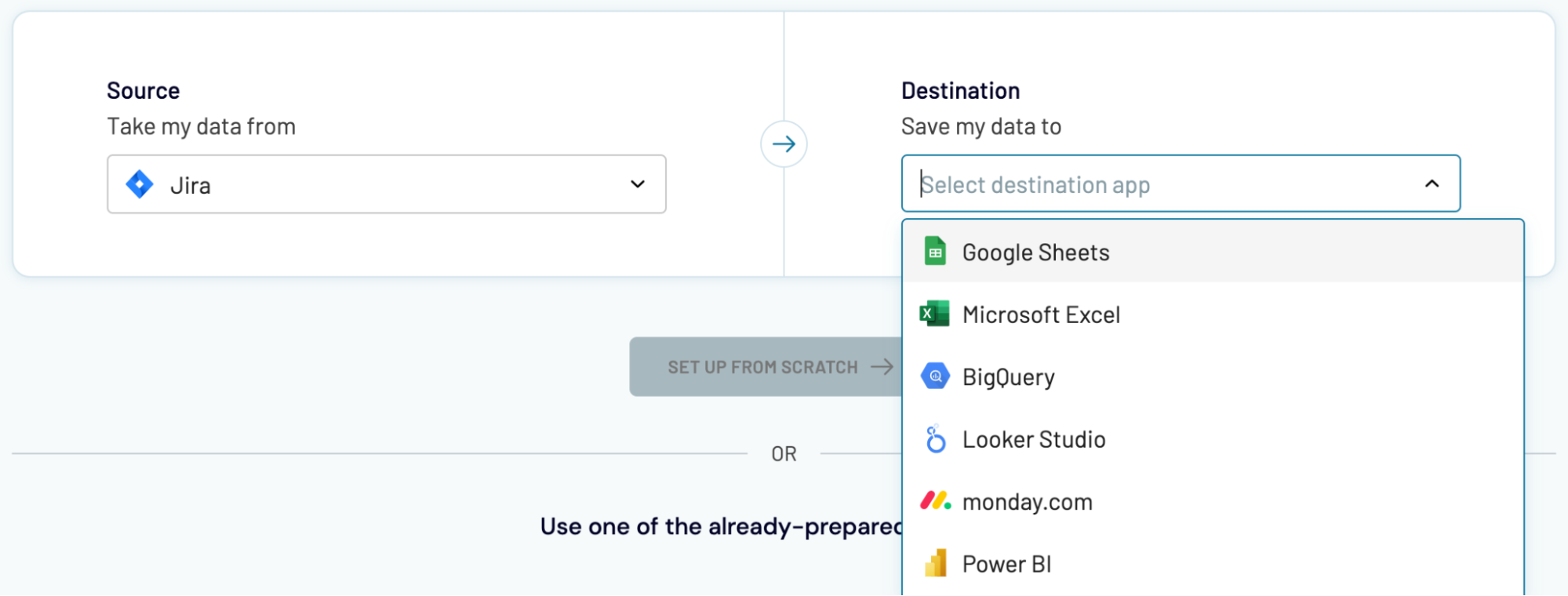
When it comes to importing Jira data into these applications, this is very similar to loading it into Tableau, as previously demonstrated.
- Spreadsheet applications: – Microsoft Excel and Google Sheets – these apps will help you create reports on your data in a quick and simple manner.
- Data warehousing software: – BigQuery, PostgreSQL, or Redshift – send your Jira records here if you'd like to store, query, and perform complex analysis of those.
- Other business intelligence (BI) tools – Data Studio, Power BI, and Qlik Sense – to benefit from visual analytics: transform data into interactive dashboards, make it easily understandable, as well as spot trends and patterns in it.
When it comes to importing Jira data into these applications, this is very similar to loading it into Tableau, as previously demonstrated.