Export Tableau to Excel
Use Coupler.io to export Tableau to Excel automatically with no programming skills under your belt. Collect your data and make various transformations on the go, creating transparent, informative reports to support strategic decisions.


Connect Tableau to Excel with Coupler.io to simplify reporting

Get and prepare data effortlessly
Export Tableau to Excel without coding by using Coupler.io. On this reporting automation platform, you can organize and transform data, put auto-updates on schedule, and connect numerous sources within a single interface.

Automate reporting tasks
You only need a few simple actions to connect Tableau to Excel for automated data reporting. Spend minimal manual effort, build multi-channel reports, and have your data visualized with the help of our free dashboard templates.

Stand out as a data-driven expert
Demonstrate your proficiency to clients and stakeholders through easily understandable, almost live reports. Thanks to Coupler.io's data analytics and automation, you can dedicate more time to far-reaching tasks rather than reporting.
Export data from Tableau to alternative destinations


Quick start with dashboard templates
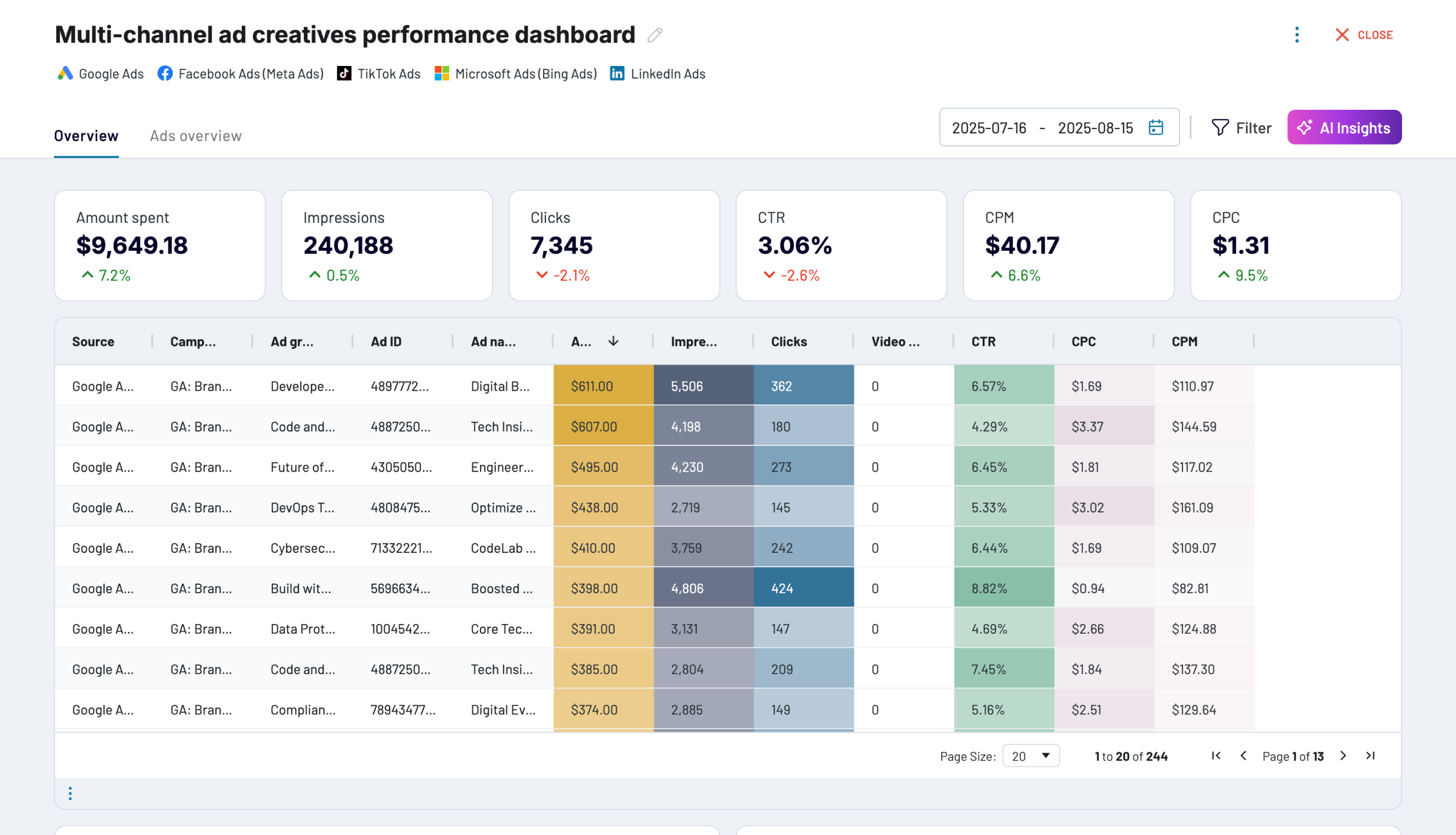
Multi-channel ad creatives performance dashboard


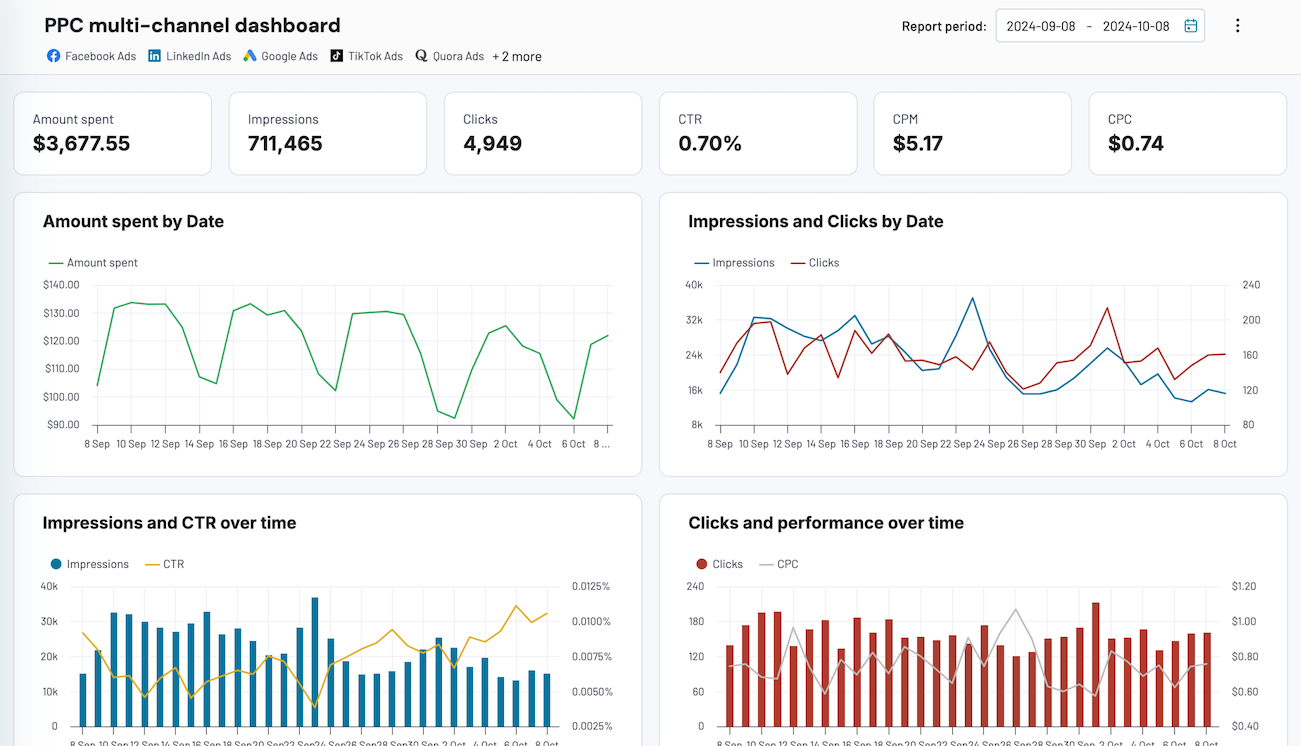
PPC multi-channel dashboard


 +3
+3
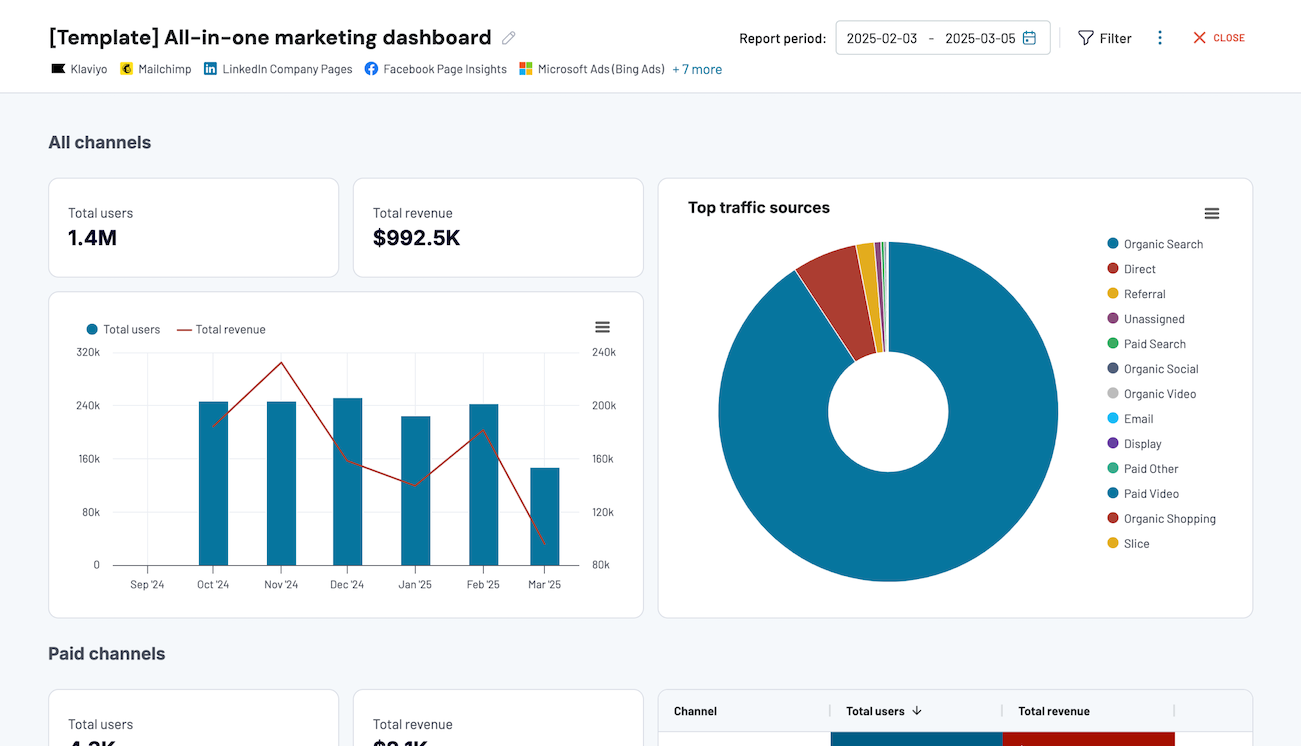
All-in-one marketing dashboard


 +6
+6
No such template is available yet.
No worries. Our team will create a template that fits your needs, just tell us more
about your case. It doesn't cost you a penny 😉
Request a custom report
about your case. It doesn't cost you a penny 😉
Export Tableau to Excel automatically with just a few clicks.
Connect similar Files & Tables apps and get data in minutes


What to export from Tableau to Excel

Marketing data
Load marketing data from Tableau to Excel to explore metrics, including campaign performance, audience demographics, and engagement statistics. This data provides valuable insights into the effectiveness of marketing strategies. It can help you refine campaigns, allocate resources more efficiently, and deeply evaluate your ROI.
Sales data
You can also connect Tableau to Excel to import sales data. It covers key metrics such as revenue, sales volume, customer demographics, and sales trends over time. With this information, it's possible to identify top-performing products or services, forecast future sales projections, optimize sales strategies, and improve customer satisfaction.
Finance data
By exporting financial statements, budget vs. actual comparisons, cash flow analysis, and profitability metrics, you can make informed decisions about resource allocation, investment opportunities, and strategic planning. Load your finance data into Excel for detailed financial modeling, scenario analysis, and performance tracking.
Accounting data
Use income statements, balance sheets, expense categorization, and tax liabilities extracted from Tableau to assess the financial performance and compliance of the business. Analysis of accounting data in Excel enables accurate auditing, trend identification, and detection of areas for cost reduction or revenue enhancement.
SEO data
This kind of data refers to website traffic, keyword rankings, backlink profiles, conversion rates, etc. Thanks to this information, you can understand online visibility, identify opportunities for optimization, measure the impact of SEO efforts on organic search, and compare your performance against competitors.
E-commerce data
Quickly export data such as sales by product category, customer lifetime value, cart abandonment rates, or conversion funnel analysis. These metrics empower you to assess the performance of e-commerce operations, customer behavior, and purchasing habits. It can also help you optimize the online shopping experience.
PPC data
Other data to import from Tableau to Excel comprises click-through rates, cost per click, conversion rates, return on ad spend, and more. It enables you to evaluate the effectiveness of your paid advertising campaigns, allocate budgets more efficiently, refine targeting strategies, and optimize ad creatives to maximize ROI.
Social media data
Extract social media data like audience demographics, engagement rates, post-performance and sentiment analysis, and others. This way, you can learn about audience preferences and brand perception across different platforms, enhance brand visibility, drive engagement, and foster customer relationships.
How do you export Tableau to Excel?
Step 1. Connect your Tableau account and enter the Tableau dashboard view URL
30 seconds
Step 2. Organize and transform data before loading it to Microsoft Excel
30 seconds
Step 3. Connect your Microsoft Excel account and specify where to load your data
30 seconds
Step 4. Schedule data refresh to automate data flow from Tableau to Microsoft Excel
10 seconds
Pricing plans
- Monthly
- Annual (save 25%)
Your data is secured by industry standards
 Google Cloud
Certified
 SOC 2 Type II
Certified
 GDPR
GDPRCompliant
 HIPAA
HIPAACompliant
Don’t just take our word for it





Dramatically improved our reporting speed by about 60%. The interface is user-friendly, even for team members with no technical background.
Helped solve data processing issues, and customer service is 10/10. It is extremely easy to use, and allows us to extract data from multiple sources.
How to export Tableau to Excel (detailed guide)
See how you can connect Tableau to Excel below:
Step 1: Collect data
To get started, authorize your Tableau account. In a new window, provide the Personal access token name and the Personal access token secret. Then, specify the View URL directing to the dashboard from where you'd like to export data.
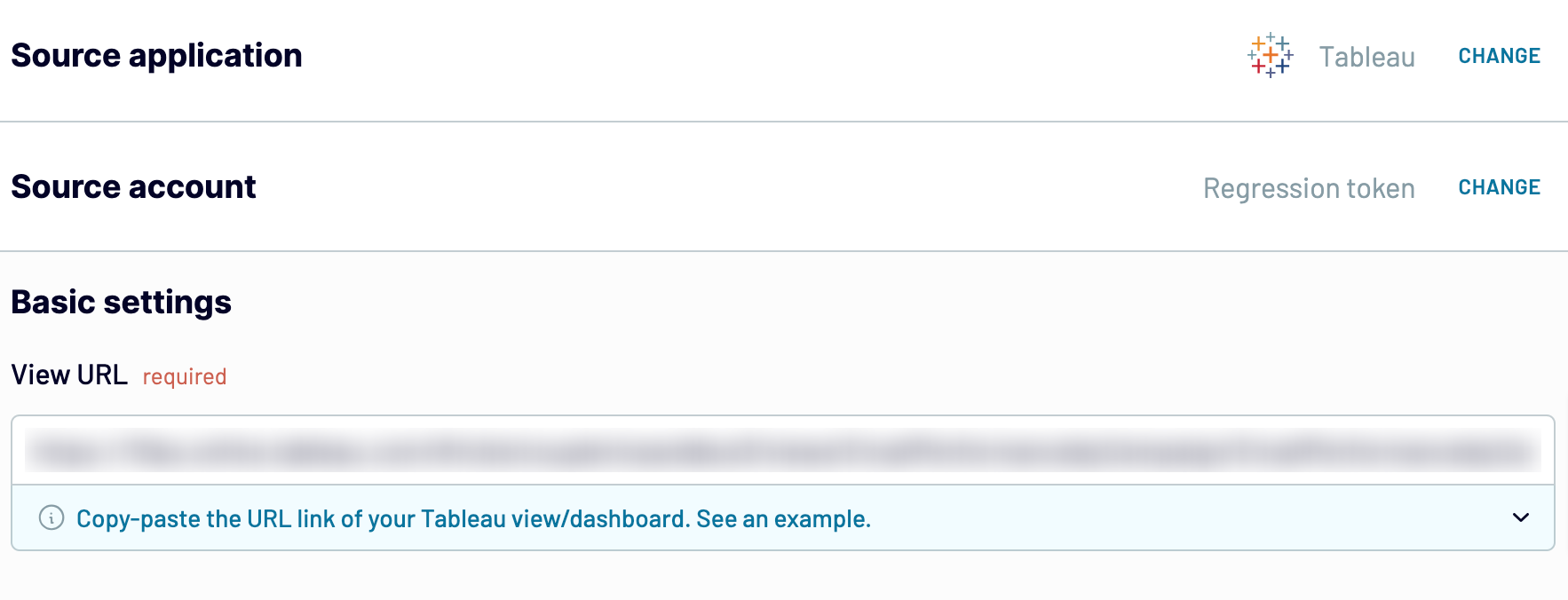
After pasting the View URL, click Finish and proceed. Then, press Transformations to move forward.
Step 2: Organize and transform
Before loading data from Tableau to Excel, you can preview it to ensure accuracy. You can also transform data in the following ways:
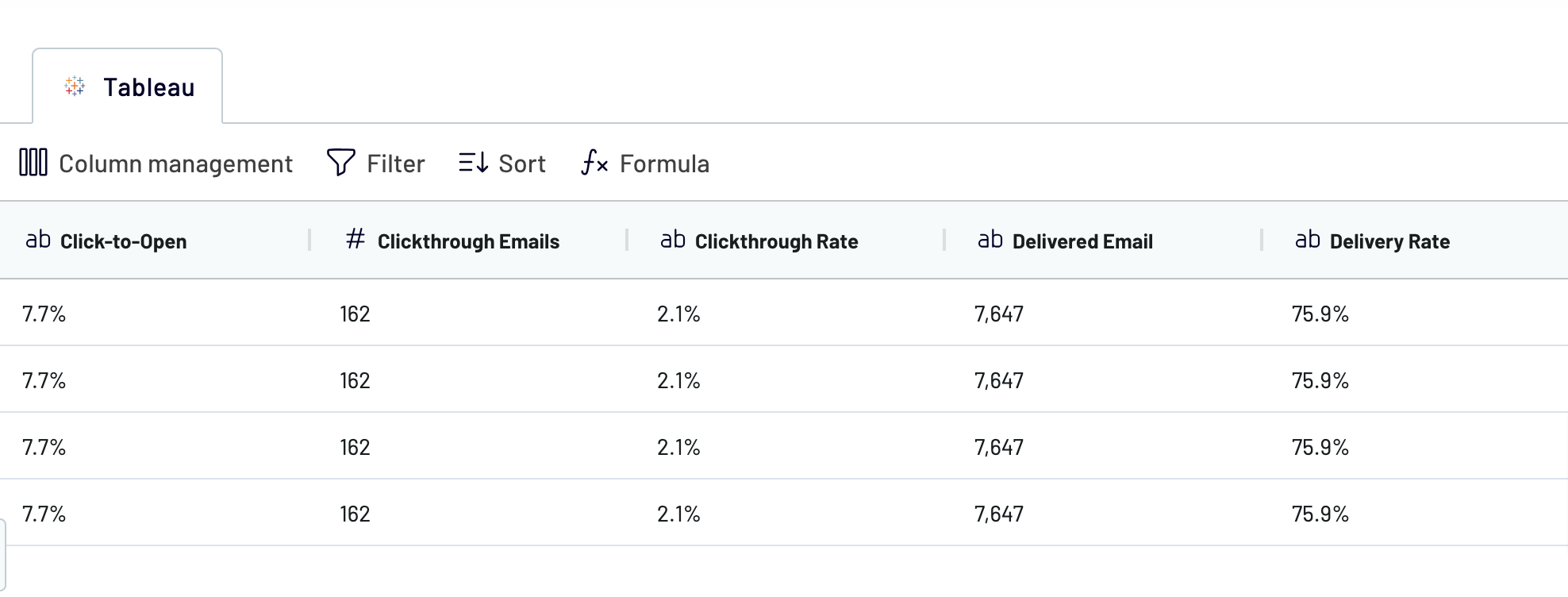
As soon as you know the data is in order, click on Destinations.
Step 3: Load and automate
Here, the first task is to authorize your Excel account. Next, you must specify the exact destination to export Tableau to Excel. To do this, select an existing workbook and worksheet. Alternatively, you can create a new worksheet by providing its name in the corresponding field.
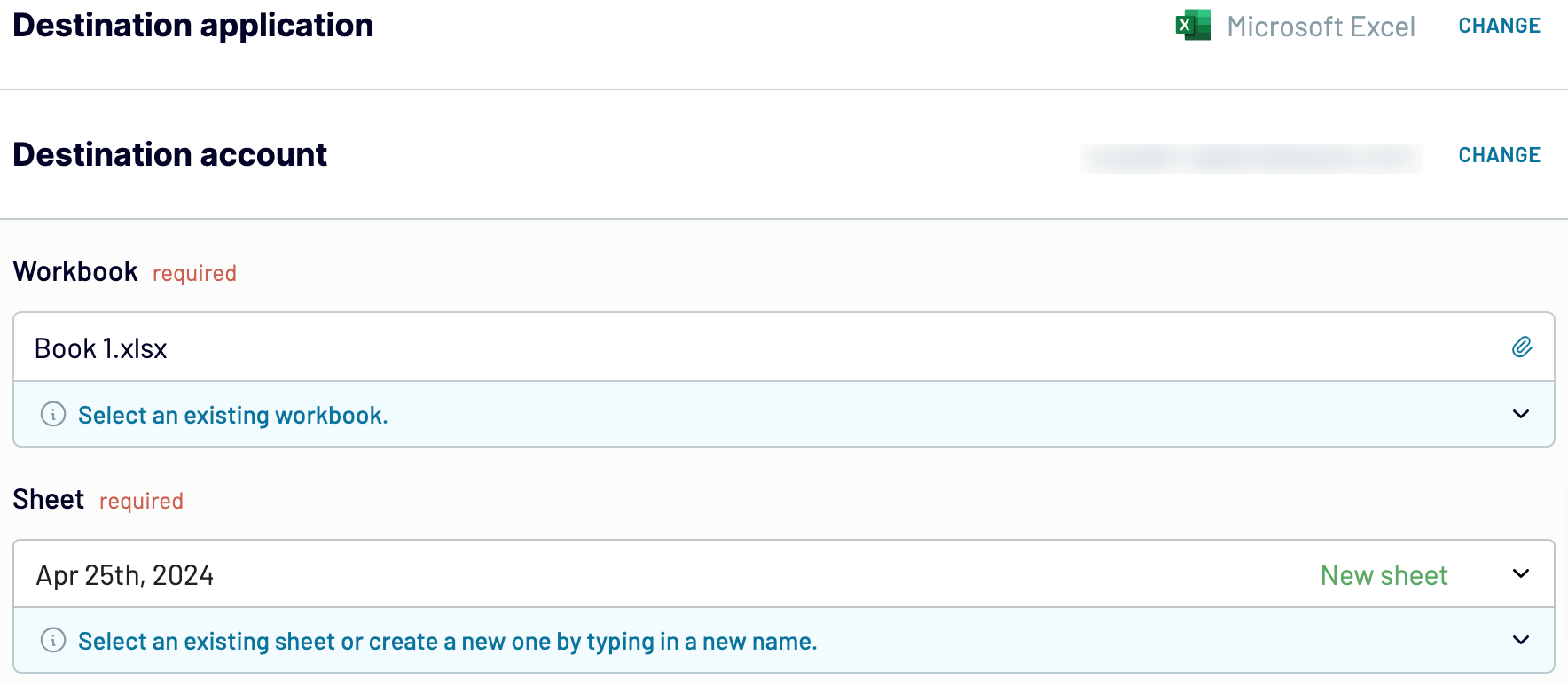
Click Set a schedule to turn on Automatic data refresh and specify the preferred interval in the dedicated dropdown field. The last click must be on the Save and run importer button. Get your data to the destination in a matter of minutes.
Step 1: Collect data
To get started, authorize your Tableau account. In a new window, provide the Personal access token name and the Personal access token secret. Then, specify the View URL directing to the dashboard from where you'd like to export data.
After pasting the View URL, click Finish and proceed. Then, press Transformations to move forward.
Step 2: Organize and transform
Before loading data from Tableau to Excel, you can preview it to ensure accuracy. You can also transform data in the following ways:
- Edit, rearrange, hide, or add columns.
- Apply filters and sort data in the preferred order.
- Create new columns with custom formulas.
- Combine data from different accounts or apps.
As soon as you know the data is in order, click on Destinations.
Step 3: Load and automate
Here, the first task is to authorize your Excel account. Next, you must specify the exact destination to export Tableau to Excel. To do this, select an existing workbook and worksheet. Alternatively, you can create a new worksheet by providing its name in the corresponding field.
Click Set a schedule to turn on Automatic data refresh and specify the preferred interval in the dedicated dropdown field. The last click must be on the Save and run importer button. Get your data to the destination in a matter of minutes.
Connect Tableau to Excel and automate data exports on schedule
Toggle on automated data refreshes to receive a self-updating report in Excel. You can choose how often it will be updated: monthly, daily, hourly, or even every 30 or 15 minutes. Additionally, consider specifying the days of the week, time preferences, and the time zone.
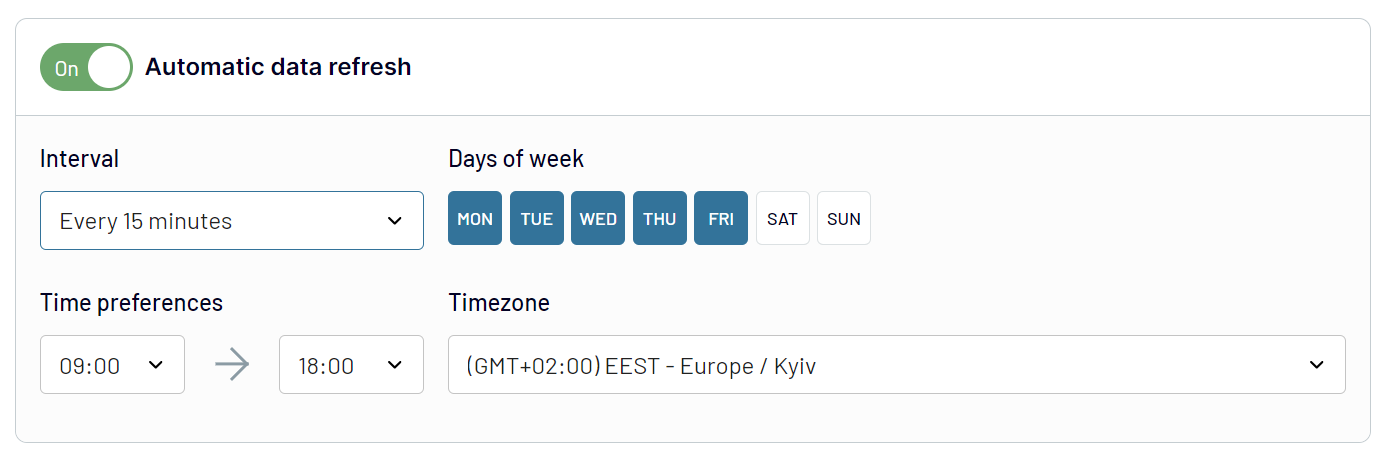
With this Coupler.io's functionality, you'll have the latest data available for analytics. Your report will be kept in sync with the most recent updates to the source.
With this Coupler.io's functionality, you'll have the latest data available for analytics. Your report will be kept in sync with the most recent updates to the source.
Replace or append the data you export from Tableau to Excel
By using Coupler.io, you can easily connect and extract data from numerous source apps. Simply click on the Connect one more source button to integrate various data streams, whether they are different accounts of the same source or separate platforms.
Another Coupler.io's advantage is its capability to blend data from multiple sources. You can combine Tableau data with information from CRM apps, analytics tools, marketing platforms, and more. It gives you the possibility to expand the range of your analytics.
Once you've connected all the preferred data sources and reached the Transformations step, you will have access to the following options for data blending:
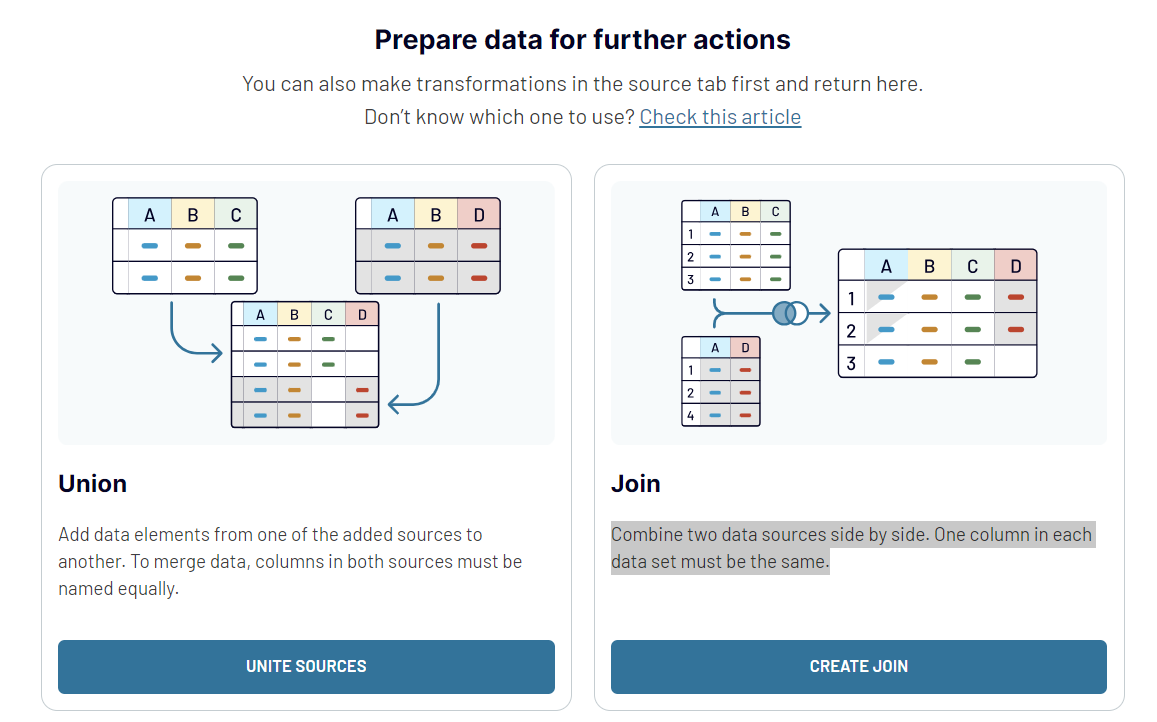
Thanks to these versatile import modes and data blending options, you can derive deeper insights from your report in Excel.
Another Coupler.io's advantage is its capability to blend data from multiple sources. You can combine Tableau data with information from CRM apps, analytics tools, marketing platforms, and more. It gives you the possibility to expand the range of your analytics.
Once you've connected all the preferred data sources and reached the Transformations step, you will have access to the following options for data blending:
- Union data: Merge data elements from one source into another. This method requires columns in both sources to share identical names.
- Join data: Combine two datasets side by side. This option demands that at least one column in each dataset has the same name.
Thanks to these versatile import modes and data blending options, you can derive deeper insights from your report in Excel.
Import data from Tableau to Excel or another destination
With Coupler.io, it's not only possible to export Tableau to Excel, but you can also replicate importers to load data to various alternative destinations:
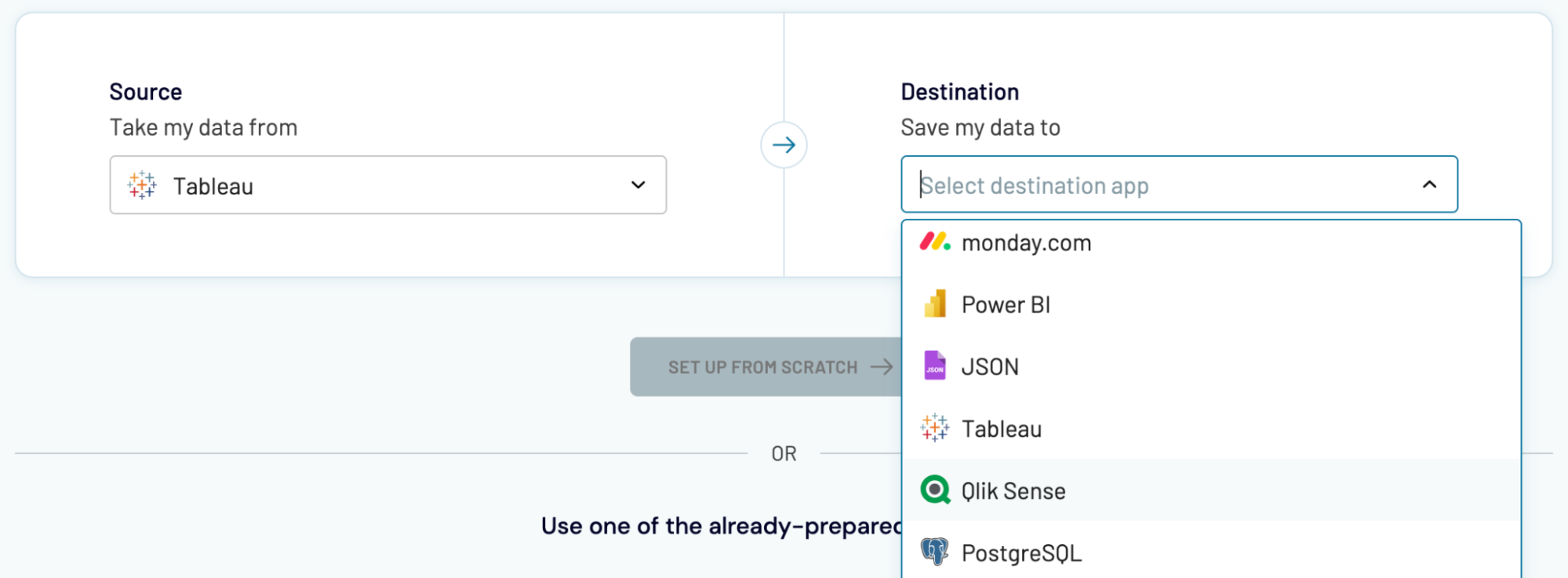
Tableau data can be imported into these apps just as described earlier for Excel.
- Google Sheets – another spreadsheet app for simple and quick reporting.
- Data warehouses: BigQuery, PostgreSQL, or Redshift – for storage, querying, and complex analysis of Tableau data.
- Other business intelligence (BI) tools: Looker Studio, Power BI, and Qlik Sense – for data visualization through dynamic and interactive dashboards.
Tableau data can be imported into these apps just as described earlier for Excel.