Export Vitally to Excel
Connect Vitally to Excel with Coupler.io for sophisticated customer success modeling that leverages Excel's analytical depth. Experience advanced retention analysis through automated data exports that deliver customer accounts, engagement records, and team workflows into Excel's familiar environment.


What data you can export from Vitally?
-
AccountsThis entity represents the customer accounts that you are managing in Vitally. It contains key information such as account-level health scores, metrics, and custom properties.
-
AdminsThis entity represents your team members who are users of the Vitally platform.
-
ConversationsThis entity represents the communication history with your customers, which can include emails and other messages synchronized from different platforms.
-
NotesThis entity represents internal notes or comments added by your team members on customer accounts or users.
-
TasksThis entity represents the to-do items or action steps assigned to your team members related to customer management.
-
UsersThis entity represents the end-users of your product or service who are associated with the accounts in Vitally.
All-in-one tool for Vitally data exports and analytics
Merge Vitally's health scores with revenue data from your billing system and product usage from analytics platforms. Create unified customer intelligence that reveals how success metrics connect to business outcomes, building complete retention stories that inform strategic decisions.

Transform complex customer success records into clean Excel tables that eliminate hours of manual formatting. Access organized health metrics, engagement histories, and team activities in analysis-ready formats that let you focus on finding insights instead of preparing data.

Set your exports to run automatically at intervals matching your analysis rhythm—from real-time monitoring with 15-minute refreshes to monthly strategic reviews. Keep your retention models and churn forecasts accurate without manual updates, ensuring every stakeholder works from identical, up-to-date customer information.

Unlock AI-powered insights alongside Excel's analytical power through Coupler.io's integrations. Enable your entire team to explore customer health patterns and retention risks through simple questions, democratizing success intelligence beyond Excel power users.

Why export Vitally to Excel - real life cases

Churn prediction modeling

Customer segmentation analysis

Team productivity measurement

Engagement scoring refinement
How to export Vitally to Excel
 30 seconds
30 seconds
10 seconds
30 seconds
30 seconds
30 seconds
10 seconds
Automate data exports with the no-code Vitally Excel integration
Connect similar CRM apps and get data in minutes


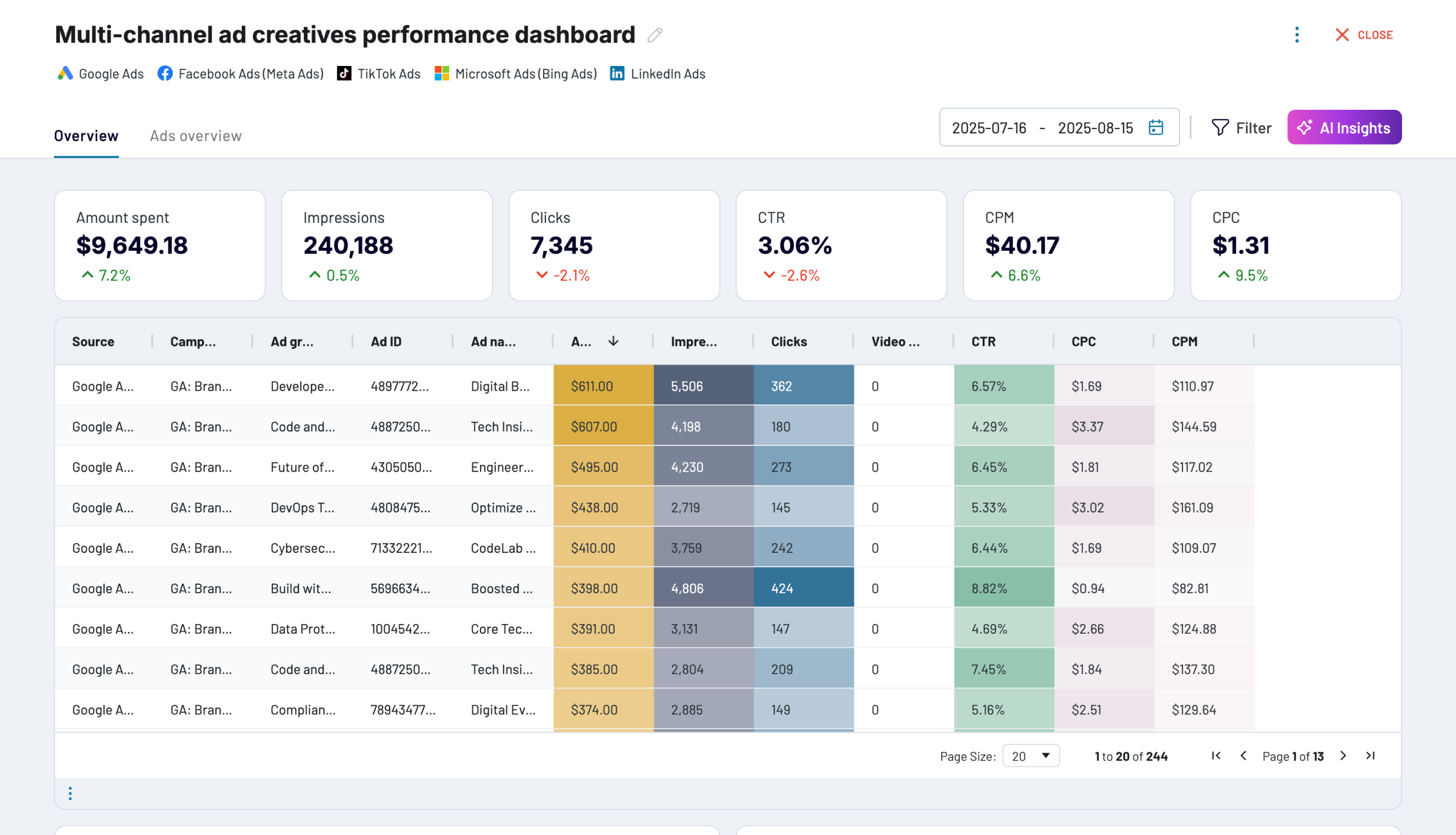
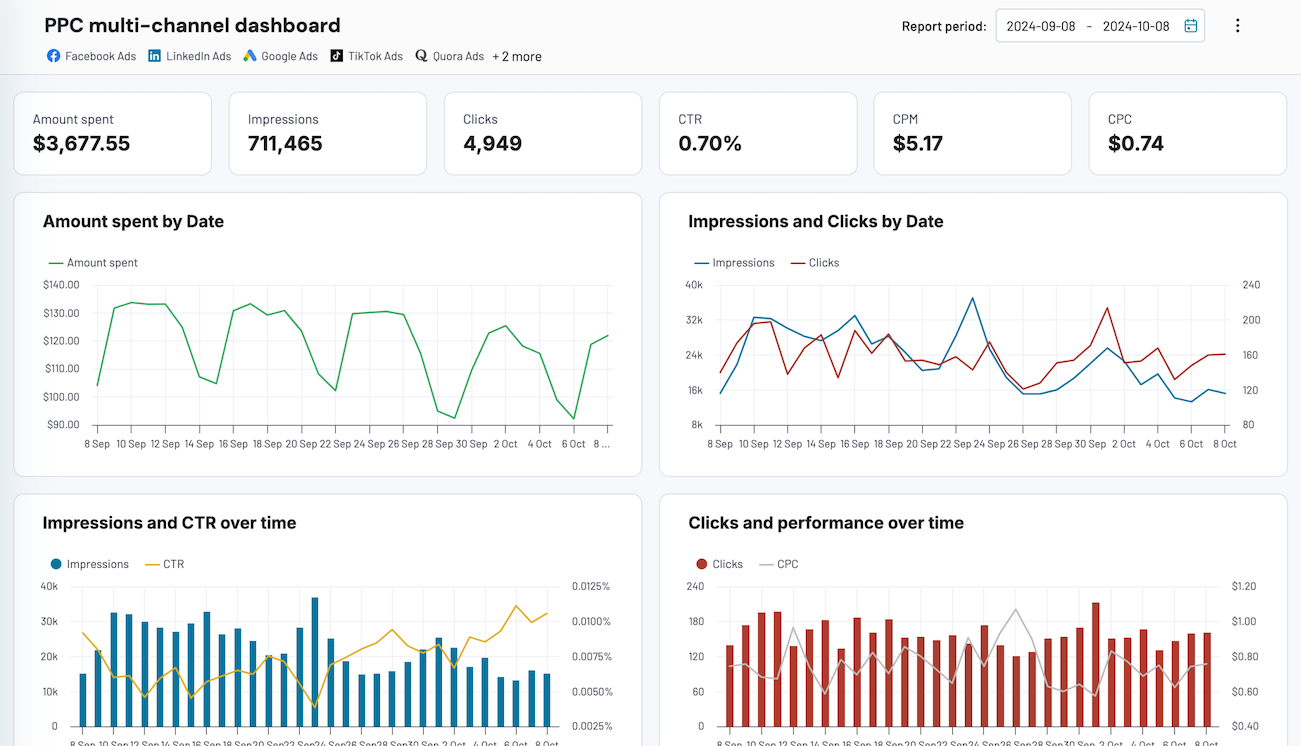
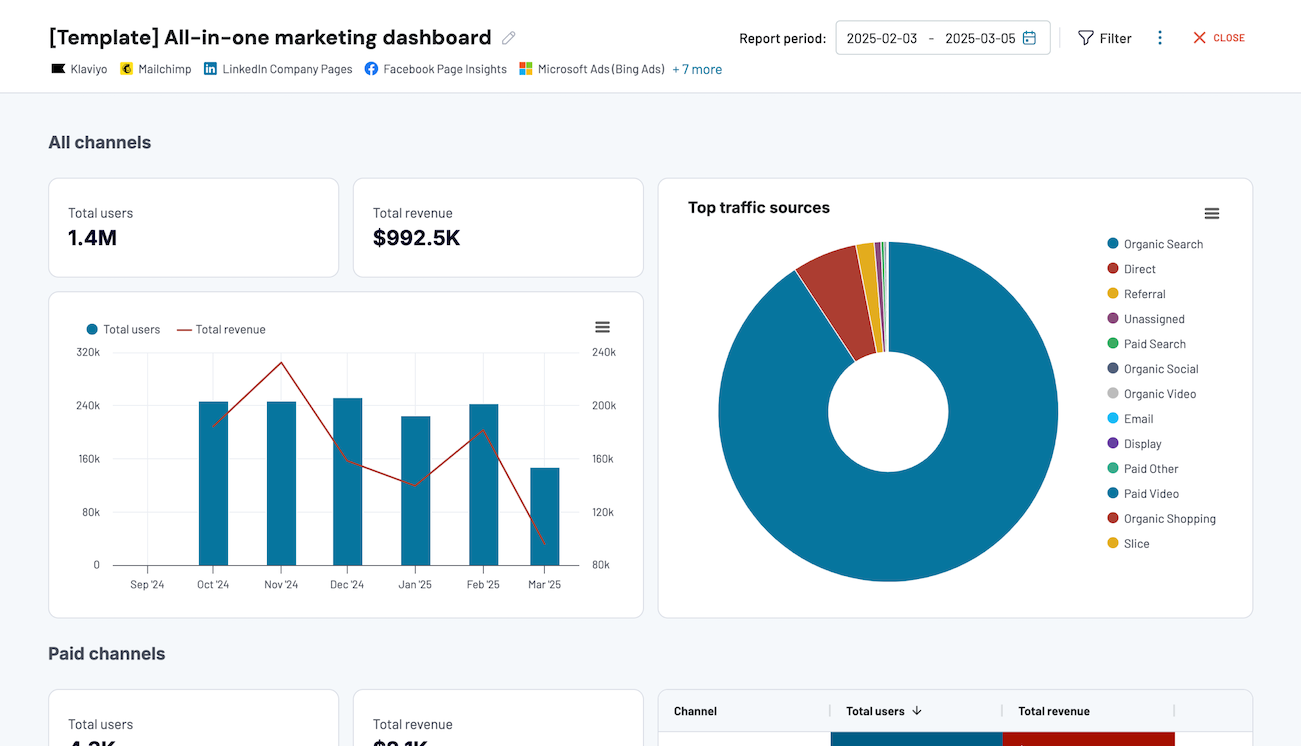
Quick start with dashboard templates


 +0
+0




 +4
+4


 +7
+7
about your case. It doesn't cost you a penny 😉
Talk to AI about your Vitally data
Examples of questions you can ask about Vitally data:
- "Looking at accounts that churned in the past year, what health score patterns appeared before cancellation?"
- "Compare task completion rates between our top-performing success managers and identify what makes them effective."
- "Which customer segments show the strongest correlation between user adoption rates and renewal success?"
- "How does conversation frequency differ between accounts that expanded versus those that stayed flat?"

Your data is secured by industry standards
 SOC 2 Type II
Certified
 Google Cloud
Certified
 GDPR
GDPRCompliant
 HIPAA
HIPAACompliant
Export data from Vitally to alternative destinations